
Find out you have overspent while you can still do something about it
An order raised from the BOQ compares what you are about to commit against what you allowed, at the moment you commit it. That is the only point where the information can still change what you do. Once the invoice is in, the money is gone.
Available on the Builder plan
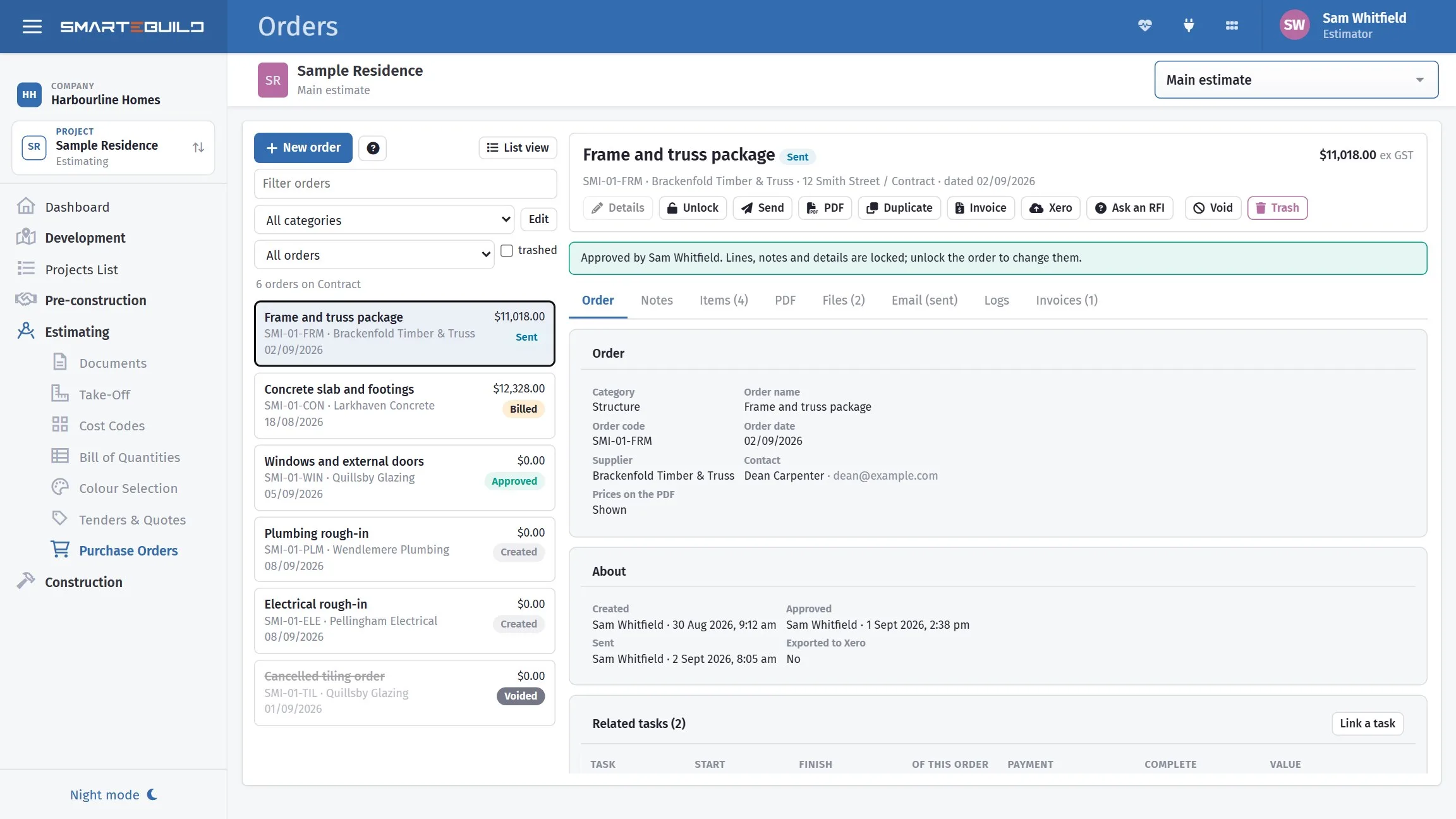
Allowed, committed, actual
Three numbers describe the cost of a job. Reading them together is how you find out a job is going wrong while there is still time to act.
Allowed
from the Bill of Quantities
What did I price?
Committed
from purchase orders
What have I promised to pay?
Actual
from expenses
What have I been charged?
Turn on Show Actual Costs Columns in the BOQ to see all three against every item, or open Cost Codes to see them added up per cost code and per stage.
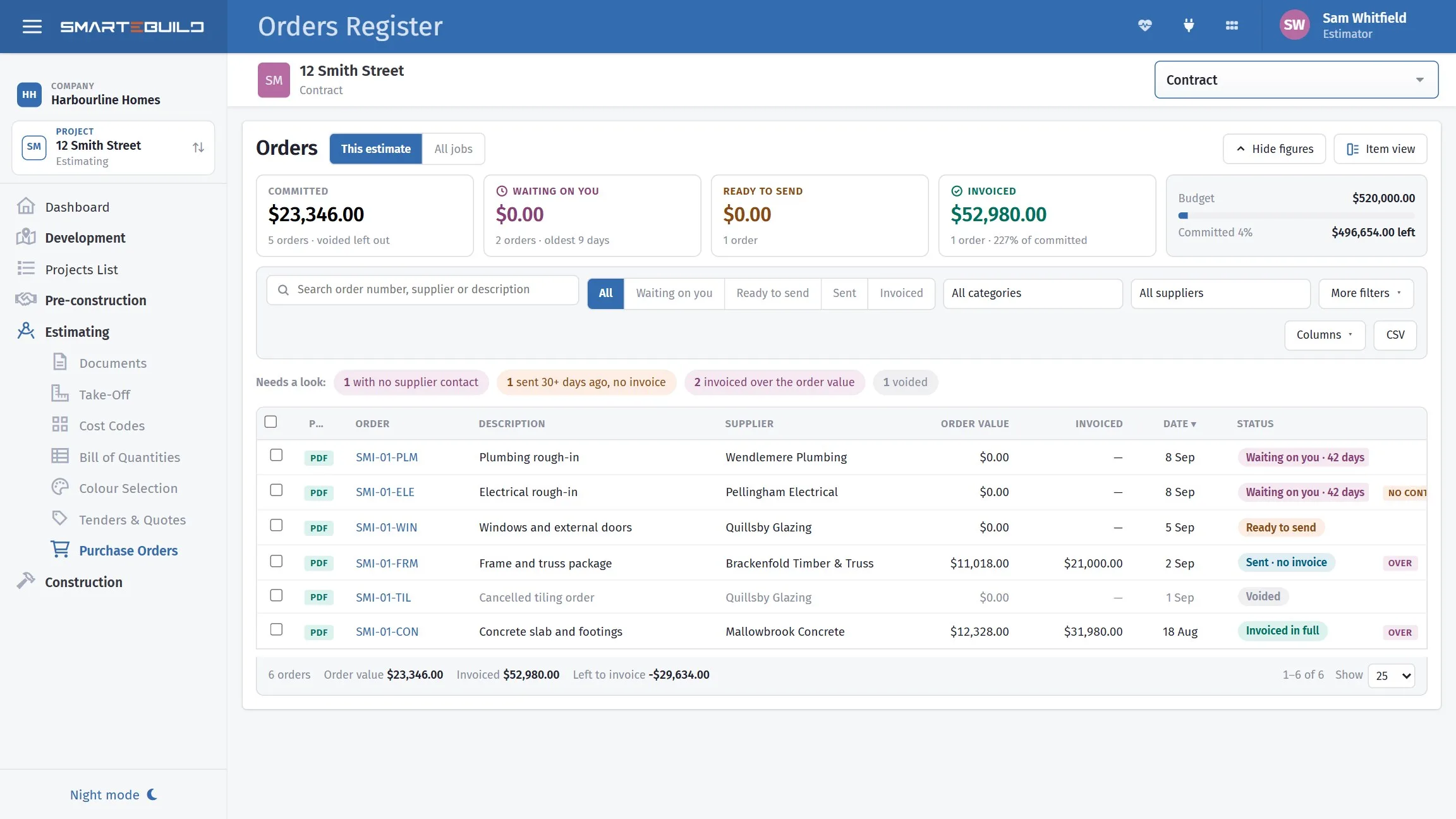
Reading the gaps
The numbers matter less than the distance between them. Each gap means something specific.
Committed above allowed
You have ordered more than you priced. A rate has risen, the scope grew, or the estimate was light. Whichever it is, you are seeing it now rather than at the end.
Actual above committed
You were charged more than you ordered. Chase this one — it is either a supplier error, an undocumented change to the order, or work nobody authorised.
Committed well below allowed, late in a trade
Usually means orders have not been raised, not that you are under budget. It is the most common false comfort in job costing.
The gap worth chasing hardest is actual over committed. An invoice that exceeds its order is the cheapest problem to fix and the most expensive to ignore — once it is paid you are negotiating a credit instead of querying a mistake.
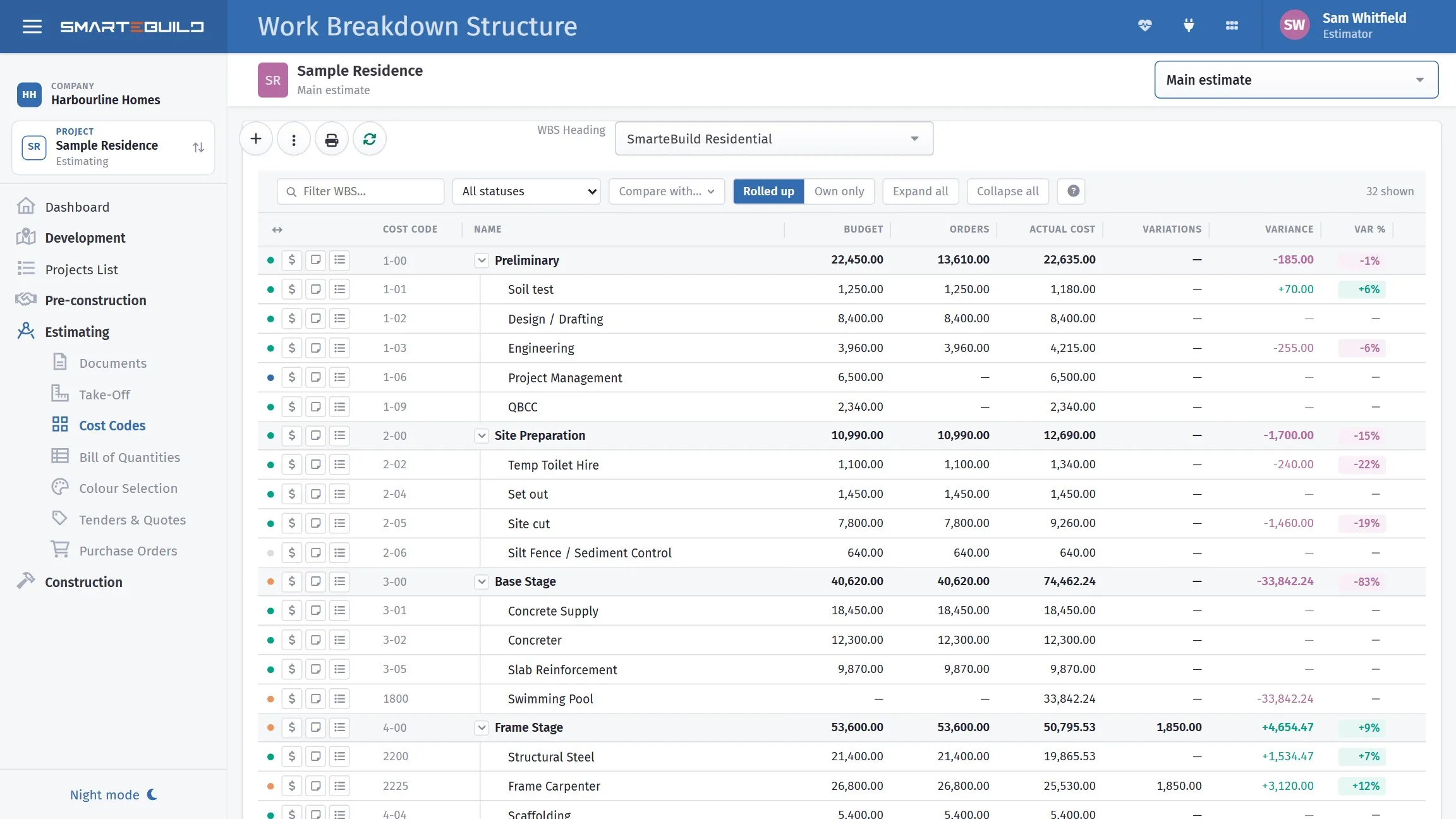
The order writes itself
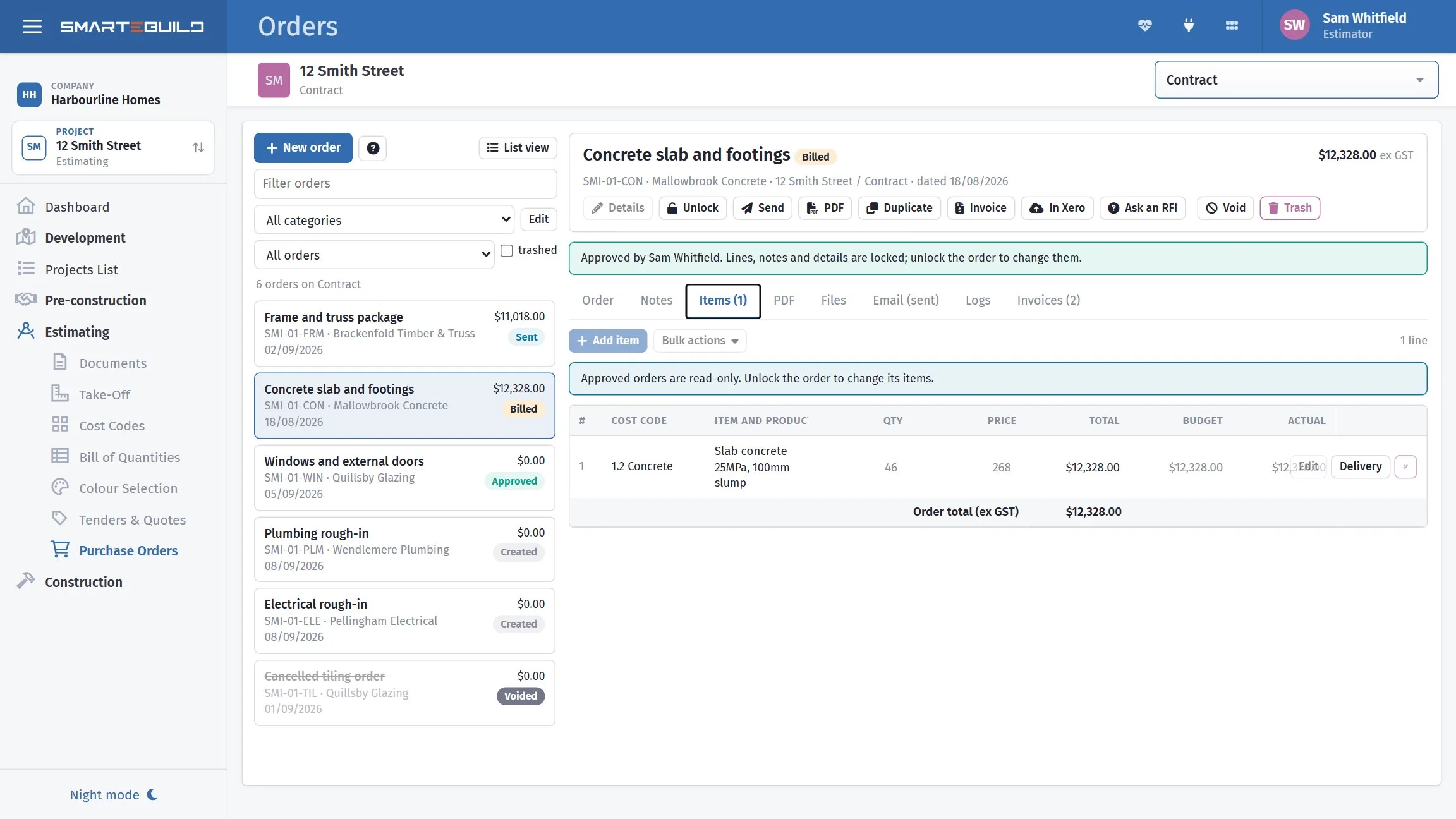
An order is built from BOQ items, which is what makes all of this work. The item already carries the description, the quantity, the rate, the supplier and the part number — so nothing is retyped, and nothing is transcribed wrong.
This is why the supplier field on your items earns its keep. Items with a supplier attached collect into an order for that supplier automatically.
- Raise from selected BOQ items in one step
- Grouped by supplier automatically
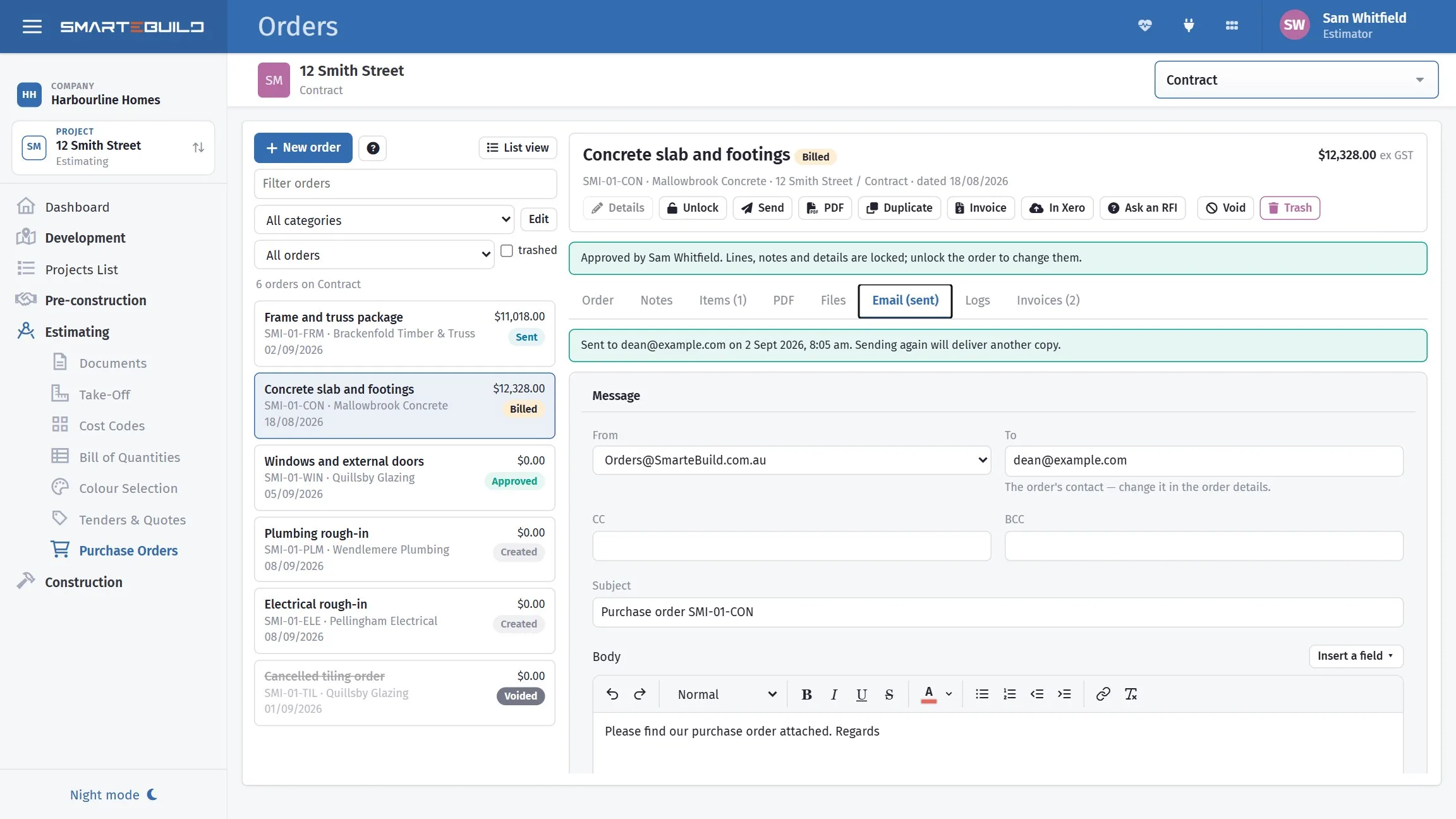
- Sent from your own email address, not a no-reply
- The trade's scope of works attached — an order from an awarded quote carries the one the tender went out with
- Duplicated, exported or voided as the job changes
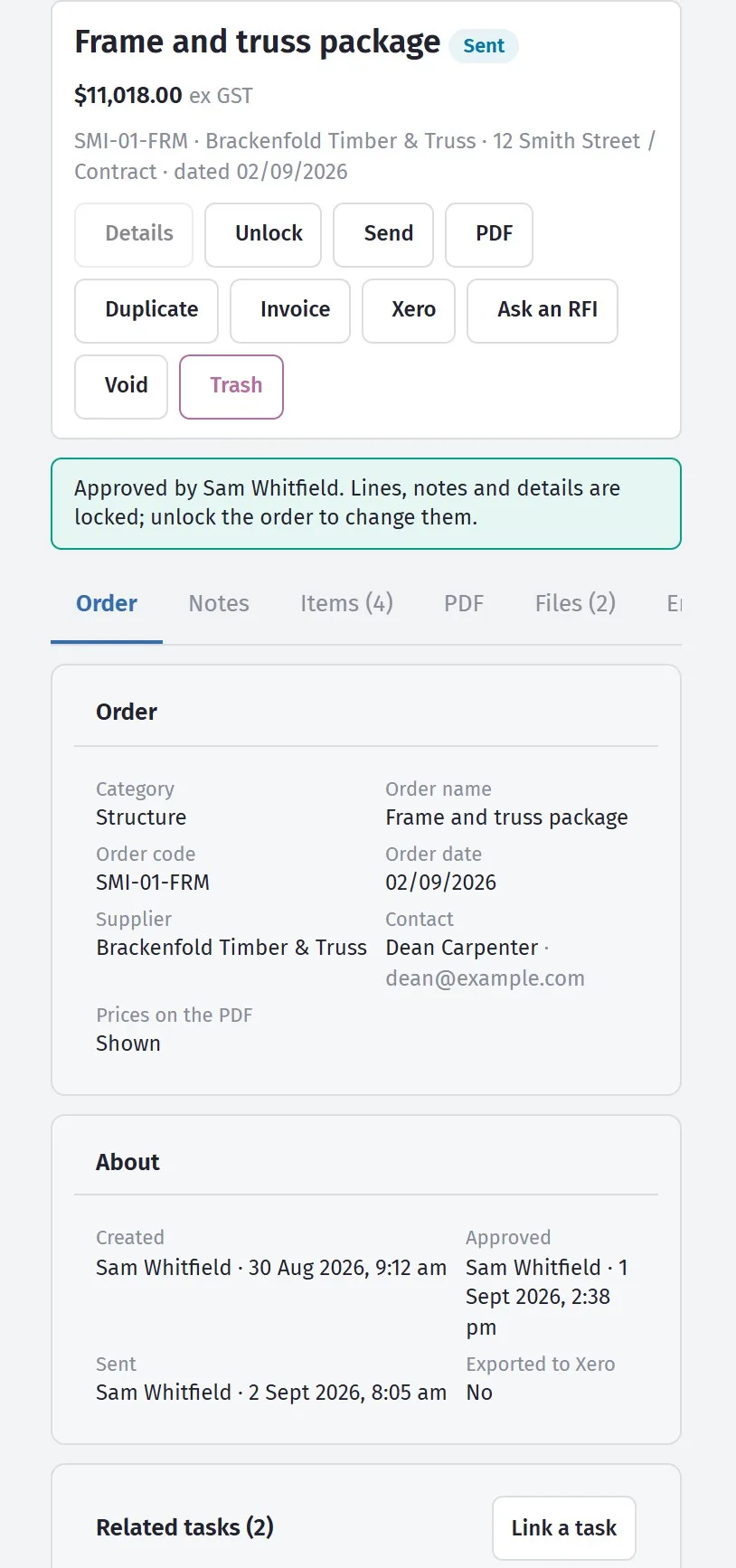
Orders on site, not just at the desk.
The life of an order
-
1
Raise it
From BOQ items — the description, quantity, rate, supplier and part number are already there.
-
2
Approve it
If your process requires it.
-
3
Send it
To the supplier, from inside SmarteBuild using your own email address.
-
4
Receive the invoice
Recorded against the order in Expenses.
-
5
Generate the invoice
Creates the expense record directly from the order.
A closer look at orders
From selecting items to the document that lands in a supplier’s inbox.
What it connects to
Nothing in SmarteBuild is an island — that is the point of it. Purchase Orders reads from and feeds into these.
-
Bill of Quantities
The costed spine of the job — items, rates, markups and margin
-
Expenses & Invoices
Match invoices to orders and watch cost-to-date against budget
-
Suppliers
One supplier list across every job, with their products and rates
-
Schedule & Gantt
Plan the build, move a date, and see what shifts with it
Want the detail?
The help centre documents Purchase Orders step by step, with worked examples — written for people using it, not for a brochure.
Start with one job and see
Try the whole thing free for 30 days. No credit card to start, and no lock-in contract.