
Move one date and see what moves with it
A programme that does not understand dependencies is a list of dates that goes stale the first time it rains. SmarteBuild's schedule is seven views over one set of tasks — so a change made in the Gantt shows up in the calendar, the call-up sheet, the order dates and the cash flow at the same time.
Available on the Builder plan

The same job, looked at seven ways
They share the same underlying data, so a change in one appears in all of them. You are never reconciling a programme against a calendar against a call-up list against an order list.
Tasks
The list. Add, edit and check off work.
Schedule
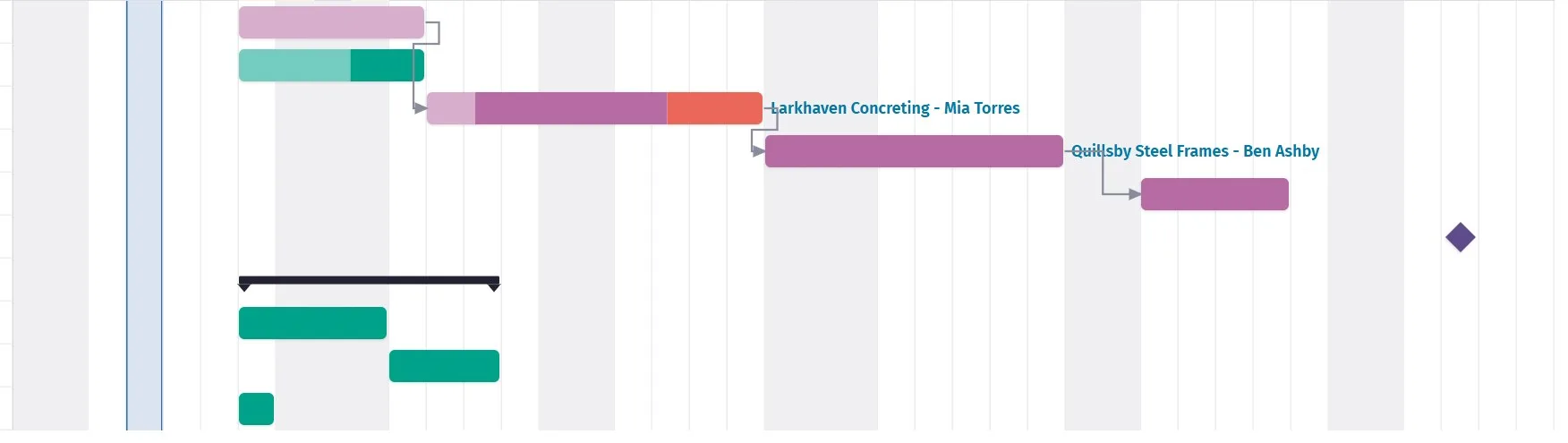
The Gantt — durations, dependencies, the critical path.
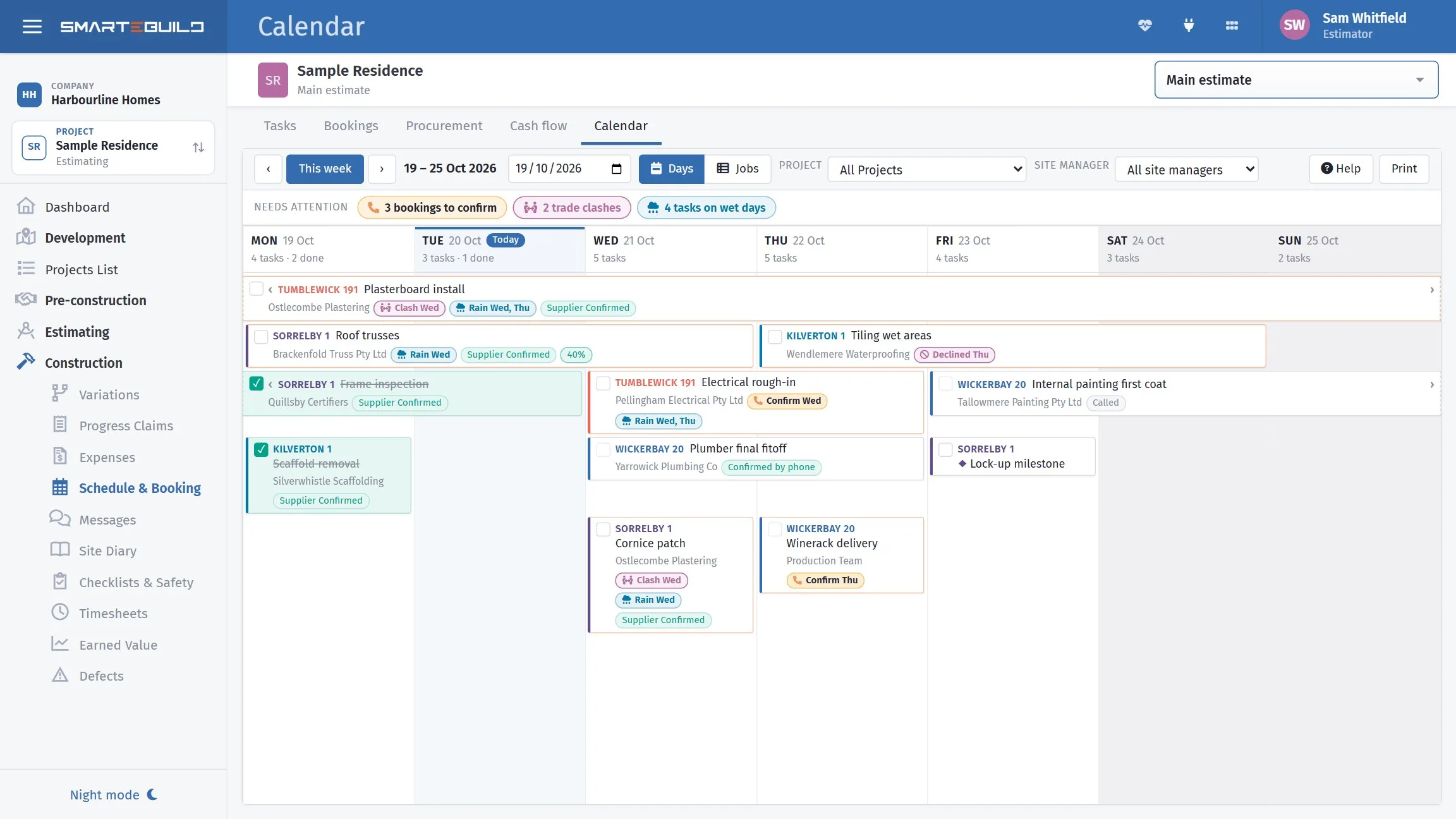
Calendar
What is happening on which day.
Call up
Telling subcontractors when to come.
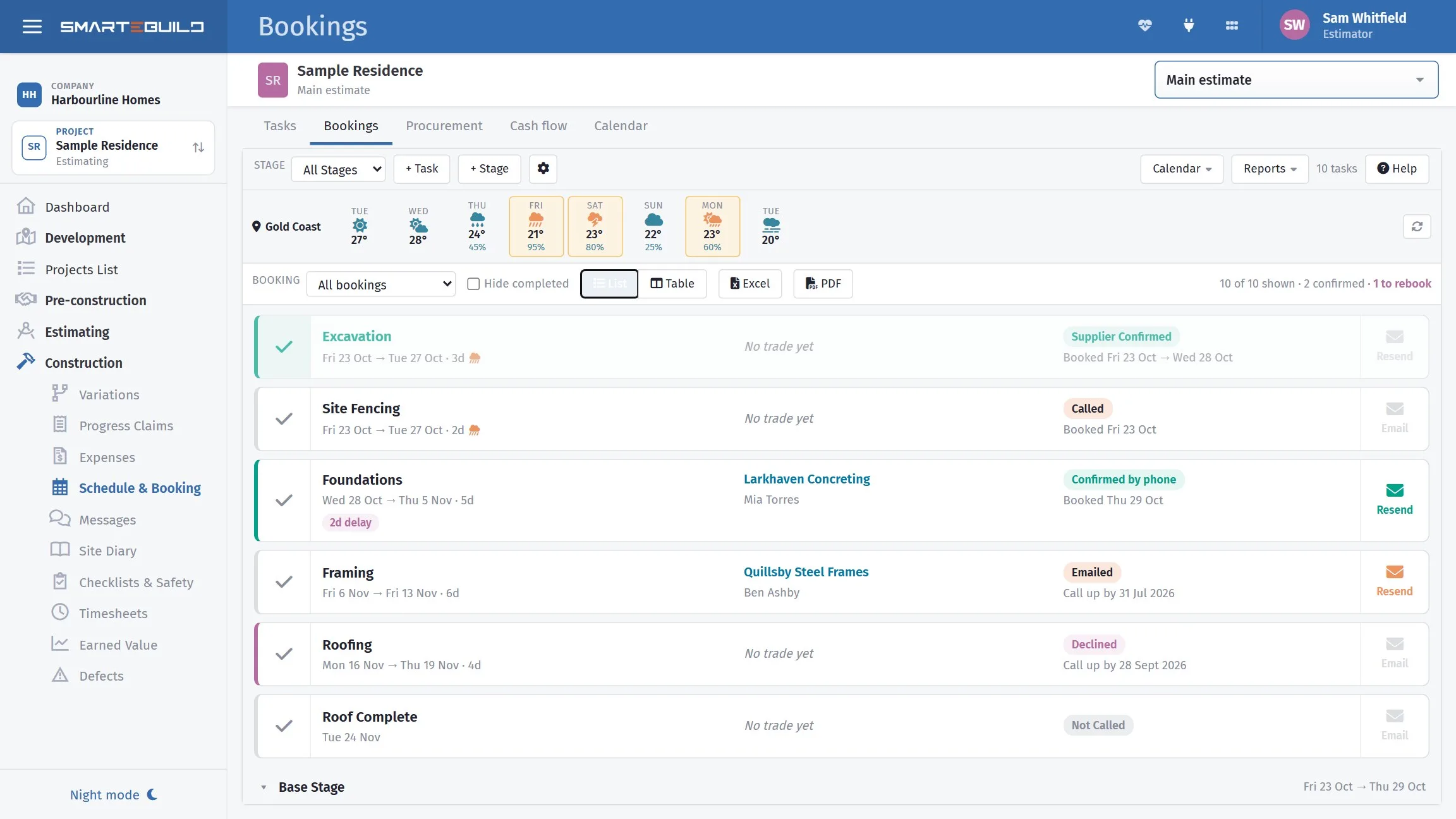
Bookings
Who has confirmed.
Procurement
What to choose and order, and by when.
Cash flow
What the job costs and brings in, over time — this job or all of them.
Which view answers which question
- Planning a job
- Start in Tasks to get the work down, then move to Schedule to give it durations and dependencies.
- Running a week
- Calendar and Call up. What is on this week, and who needs telling.
- Is the subbie actually coming?
- Bookings.
- What do I need to order this week?
- Procurement. Every order-by date is worked back from the task it is for.
- When will we be finished?
- Schedule. The Gantt is the only view that can answer it, because it is the only one that understands dependencies.
- When do we need the money?
- Cash flow — for this job, or every job at once.
Do not try to plan in the calendar. It shows what is scheduled; it does not understand why. Move a task there and nothing downstream follows. Plan in the Schedule, where dependencies mean a change flows through the rest of the job.
The more a task knows, the more the other views can do
Everything in the schedule is a task. A task with a name and nothing else appears in the list and does nothing anywhere else. A task that carries its cost code, its supplier and its call-up period drives the call-up sheet, the bookings view and the cash flow projection without any further work.
- A duration and dates
- Predecessors, so it follows other work
- A cost code and a supplier, connecting it to the estimate
- A cost, or a link to a purchase order
- A call-up period, so the subcontractor is told in time
Call-up notice varies enormously
Set it per task, because trades are not alike:
| Concrete | 1 week |
|---|---|
| Carpenter | 2 weeks |
| Roof tiler | 2 weeks |
| Cabinetmaker | 6 weeks — a manufacturing lead time |
| Windows | 8 weeks — ordered, not called up |
Ask each of your regular subcontractors what notice they want, set it once, and the call-up view works out the rest.
Two ways to start, neither of them a blank page
The reason most builders programme one job in ten is the first hour, staring at an empty Gantt. Both of these get you to something worth editing in a couple of minutes.
Start from a template
Import Template loads a ready-made programme — tasks, durations and the links between them. Your own past jobs are there, and so are SmarteBuild's own residential programmes, so a new customer is not starting from nothing on day one.
Start from your own cost codes
Build from Cost Codes makes one task per cost code on the job, in order, each one following the last and carrying its own budget. Then you drag the durations to reality instead of typing the trade names in.
Both replace the current programme, so they are a starting point rather than something to run over a job you have already planned.
A programme that can prove it slipped, and why
When the client agrees the programme, save a baseline. It draws as a thin grey line above every bar from then on, and the toolbar tells you how many working days the job is ahead or behind it. No argument six months later about what the original dates were.
A delay gets logged on the task itself — the reason, how many days, when it started and when you became aware of the cause. Those days show in red at the end of the bar and push every dependent task out, so the finish date moves the way it really will.
From that delay you can write the extension of time notice: the notice of delay and the claim, with the weather and the site diary for those days attached, and a due date worked out for you — five business days after you became aware under the HIA contract, which is the one most residential builders are on. Check your own. Print it, email it, or mark it as given.
The Delay register puts every delay logged that way on one page — the days lost, the category, the date and the note, with the total days lost at the top — for this job or every job, the last three months unless you change the dates. Both reports, in the help centre →
The money reason to bother
An extension of time that is not claimed in the window is usually not an extension of time. It becomes liquidated damages on a job that was late for a reason outside your control, and the paperwork to prove otherwise is exactly the paperwork nobody did at the time.
Changing it without dreading it
- Undo
- The round-arrow button, or Ctrl+Z, takes back your last change — hover it and it tells you which one. Press again to keep going back. Dragging a bar on a live programme stops being a decision you have to be sure about.
- Link types
- Finish to start is the usual one; start to start, finish to finish and start to finish are there for the trades that genuinely overlap. Pick the type, click one bar, then the other.
- Working week and start date
- Which days the site actually works — add Saturday if you run a Saturday crew — and the day the job starts. Change either and every date is worked out again.
- Printed reports
- The programme, or a two, three or six-week lookahead, on paper or as a PDF. Plus reports across one job or all of them: who is doing what, due and upcoming, progress, progress claims and delays. Everything prints or comes out for Excel.
- Microsoft Project
-
Import a programme from Project as XML, or export yours the same way for a client or a
superintendent who works in it. (
.mppfiles cannot be read — save as XML first.)
Long-lead items are orders, not call-ups
Cabinets and windows need ordering months ahead, not calling up a fortnight ahead. If a long-lead item only exists in your programme as a call-up, it is already late. That is what Procurement is for.
When the money moves, not when the work happens
The same tasks drive the job's cash flow: income from the contract stages on the dates they are expected, costs sitting in the week they are actually paid rather than the week the work is done. Switch it to All jobs and every live job stacks into one timeline, by week or by month, with a running balance you can put your bank figure into.
The S-curve asks a harder question than the Gantt
A Gantt says a task is late. Earned value says whether the job is behind and over, using the same programme and the same estimate — the planned curve against what has actually been earned and spent. Builders call it the S-curve, and it is the view a bank or a client's superintendent asks for.
The order-by date that moves when the job moves
A fifth tab holds everything that has to be chosen, ordered and delivered, each item tied to the task it is needed for. The order-by date is worked out from that task and the lead time, so pushing the frame back a fortnight moves every order behind it — and the list shows what is overdue, what is due in the next two weeks, and what will arrive too late.
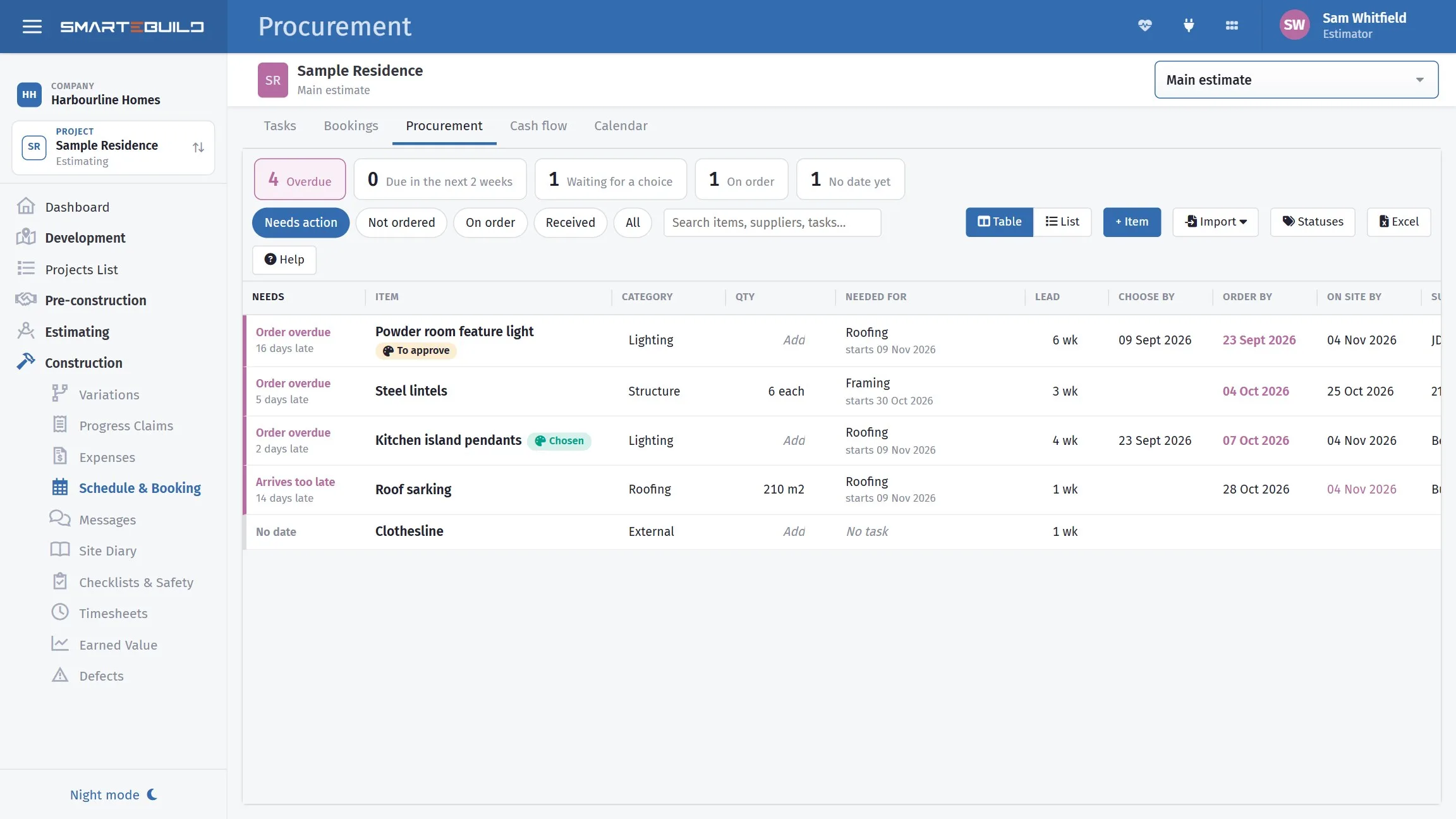
A closer look at the schedule
Seven views over one set of tasks — here are three of them.

What it connects to
Nothing in SmarteBuild is an island — that is the point of it. Schedule & Gantt reads from and feeds into these.
-
Call-Up Sheets
The week ahead on one page, so no trade gets forgotten
-
Cash Flow
What the job costs you and when, projected across the programme
-
Purchase Orders
Raise orders straight from the BOQ and send them without re-keying
-
Projects & Estimates
Contract stages, markups and the numbers behind every job
Want the detail?
The help centre documents Schedule & Gantt step by step, with worked examples — written for people using it, not for a brochure.
Start with one job and see
Try the whole thing free for 30 days. No credit card to start, and no lock-in contract.