
The joinery was ordered the week it was supposed to arrive
Procurement is one list per job of everything that has to be chosen, ordered and delivered, with each item tied to the task it is needed for. The order-by date is worked out from the programme and moves when the programme moves — so nothing is ordered late because a date in a spreadsheet went stale.
Available on the Builder plan
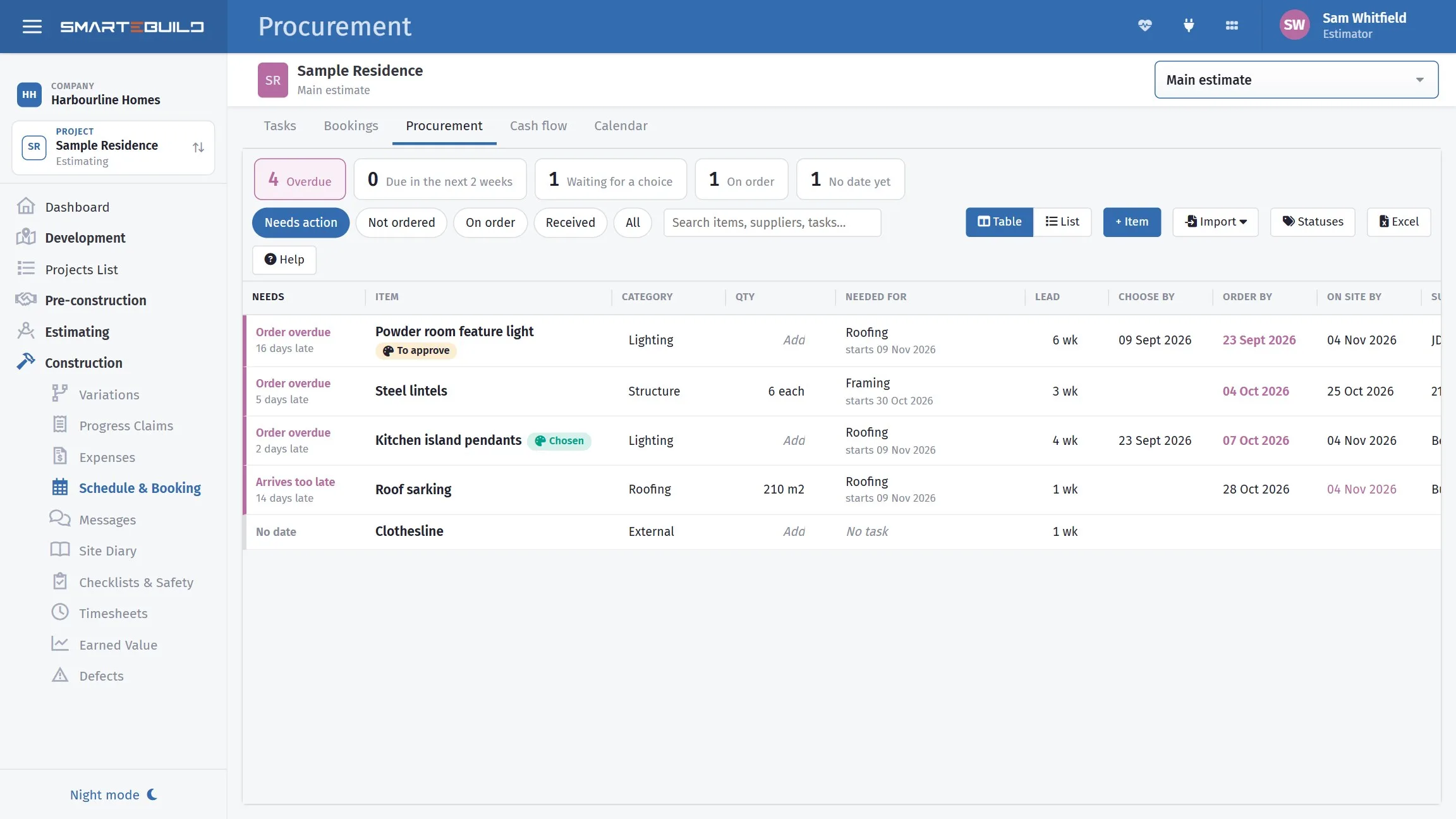
A spreadsheet cannot know the slab slipped
Most builders keep this list, and most keep it in a spreadsheet. It works until the programme moves, which it always does. The frame goes back a fortnight, nobody reopens the procurement sheet, and every order-by date in it is now wrong by two weeks — in the direction that costs money.
Here the dates are not typed. Each item is tied to the task it is needed for, and the dates are worked out from that task every time the page opens. Move the task and the whole list moves with it.
Three dates, counted backwards
- On site by
- The task’s start, less the few days you want the material there before the trade turns up.
- Order by
- On site by, less the supplier’s lead time.
- Choose by
- Order by, less the time the client needs to make the choice. It only appears on the items somebody has to choose.
An item that is not tied to a task simply takes the date you type.
The list sorts itself by what will hurt first
You do not read a procurement list from the top. You read the part that is late. Four flags do that sorting for you:
| Order overdue | The order-by date has gone and nothing has been ordered. |
|---|---|
| Choice overdue | Still not chosen, and the choose-by date has gone. |
| Arrives too late | The supplier’s own delivery date lands after the day it is needed on site — the one you cannot fix by ordering faster. |
| Order soon · Choose soon | Due in the next fortnight, so it is this week’s work. |
Arrives too late is the one worth having. It compares the supplier's promised date against the day the task needs it, which is the problem you want to find in September rather than on the morning the trade arrives.

Ordered means the order went, not that somebody ticked a box
Link a purchase order to an item and the item reads Ordered by itself, on the day that order is actually sent. Nobody maintains a status column, and nobody can mark something ordered that was never sent.
It works from the other end too: open an order and you can see, and link, the procurement items it covers. The purchase orders list carries a count of how many procurement items on the job are overdue or due soon, so the number finds you rather than waiting to be looked for.
One lead time, shared
The lead time can come from the task itself, so the item and the booking use the same figure. Change it in either place and the other follows — which means the programme and the procurement list cannot quietly disagree about how long the windows take.
Call them what your team already calls them
Every builder tracks this slightly differently. One has a warehouse, one has a yard, one only cares whether it is on site. So the statuses are yours: name them the way your team talks — In Warehouse, On Site, Not Required — give each one a colour, and pick one straight from the table. They belong to the company, so every job uses the same set, and only an administrator can change the list.
Underneath, each of your statuses sits in one of four stages: not ordered, ordered, received, or not needed. That is what keeps everything else working no matter what you call things — the overdue flags, the purchase order link, the dashboard card and the Monday email all read the stage, not the name.
There is a quantity against each item too, with its unit if you want
one — type 25 m2 straight into the column. It is yours to type or import,
not something pulled off the estimate.
It survives the import
Bringing a list in from a spreadsheet or Monday.com, the import reads your status names. A Monday board with no status column has its group titles treated as the statuses. Anything it does not recognise it asks you about in the import window rather than guessing.
Five ways in, and none of them is typing it out
The job you are starting is rarely the first of its kind, and most of what needs ordering is already written down somewhere in SmarteBuild. One Import menu covers it:
- From the colour selections. Every choice on the job becomes an item with a choose-by date against it.
- From the estimate. Pick items from the bill of quantities — PC items first — each arriving under its cost code with its supplier.
- From a spreadsheet. An .xlsx or CSV, or an export from Monday.com, shown back to you for checking before anything is added.
- Pasted. Cells copied straight out of a spreadsheet, or one item per line.
- Copied from another job. The list from the last house of that type, attaching itself to the tasks with the same names on this one.
Day to day it stays quick: category and lead time are edited in the table itself, columns can be dragged wider, and the whole list goes out to Excel when somebody wants it on paper. There is a list view for a tablet on site.
"Nobody told me you needed it by then"
Half the late items on a job are late because a client took three weeks to choose a tap. Every selection a procurement item is waiting on shows the client please choose by and its date, in their own portal, with the late ones marked.
It changes the conversation from chasing to a date they were given weeks ago, in writing, with the job's programme behind it.
Monday morning, before anyone asks
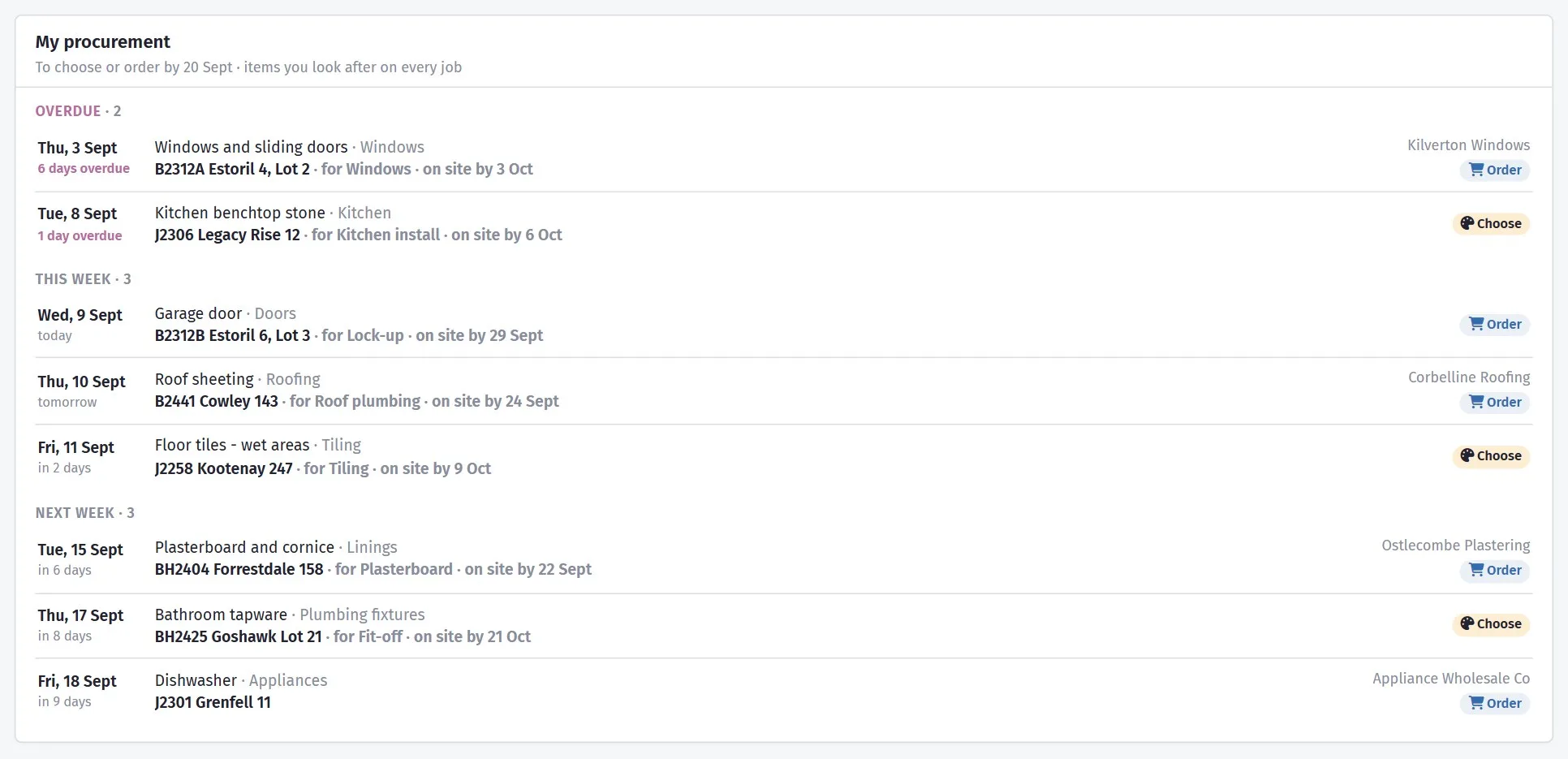
The dashboard carries a My procurement card: everything you look after, across every job, due this week or next, with the overdue at the top.
Every Monday each person is emailed their own list of what to choose or order this week and next. It is only sent when something is actually due, and anyone can switch it off on their profile — because an email that arrives when there is nothing to do stops being read by about the third week.
It is the same list every builder keeps. It just stops going stale.
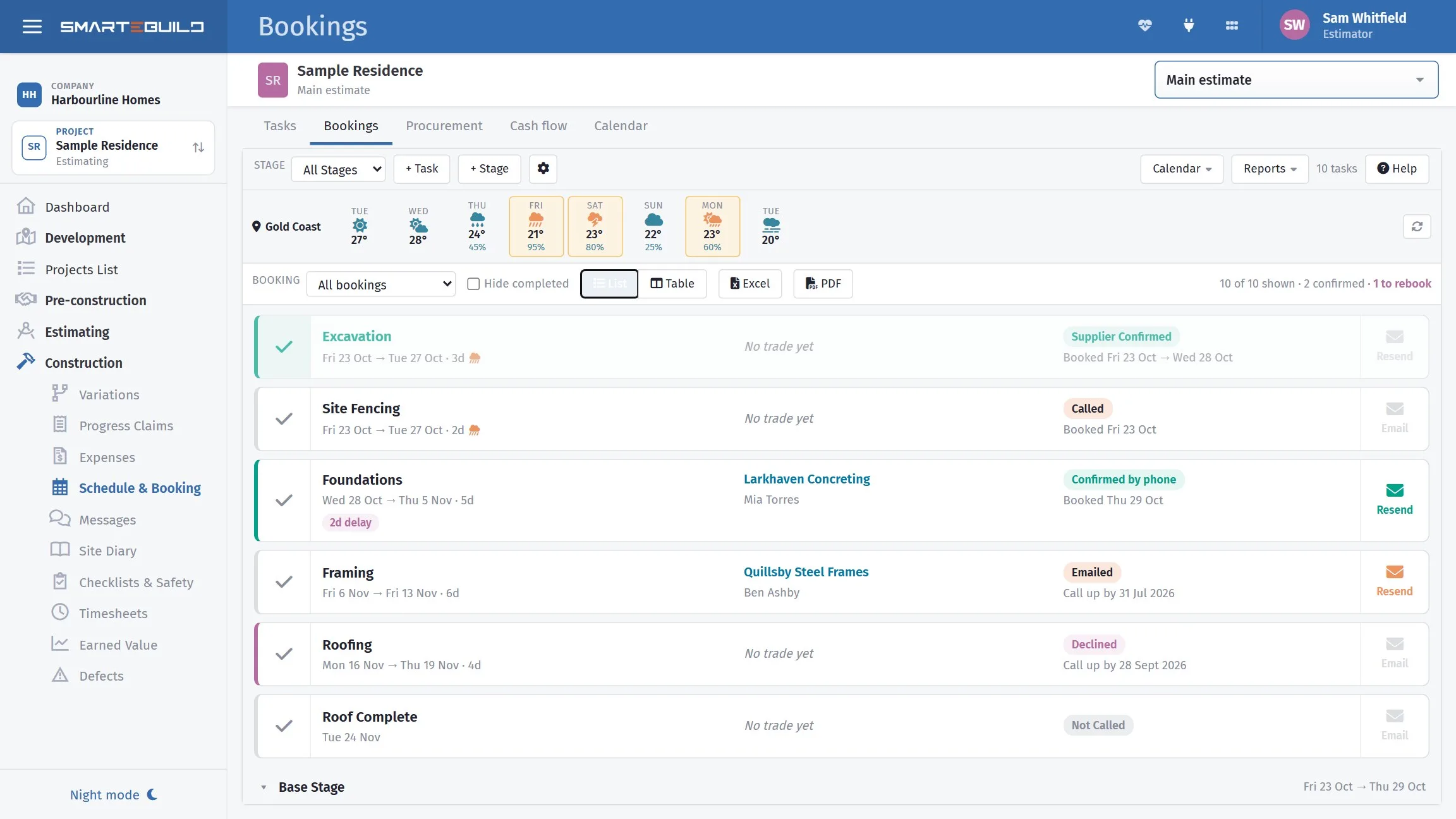
Nothing here asks you to work differently. The difference is that the dates come from the programme instead of from the last time somebody opened the spreadsheet — and that the window supplier is told when the frame moves.
A closer look at procurement
One list, three dates, and the things that need you today at the top.

What it connects to
Nothing in SmarteBuild is an island — that is the point of it. Procurement reads from and feeds into these.
-
Schedule & Gantt
Plan the build, move a date, and see what shifts with it
-
Purchase Orders
Raise orders straight from the BOQ and send them without re-keying
-
Colour Selection
Estimate, select, approve — then push the choices into the estimate and the orders
-
Client Portal
One page for your client about their job, and no more "can you resend that?"
Want the detail?
The help centre documents Procurement step by step, with worked examples — written for people using it, not for a brochure.
Start with one job and see
Try the whole thing free for 30 days. No credit card to start, and no lock-in contract.