
One link for the client, and nothing on it you did not put there
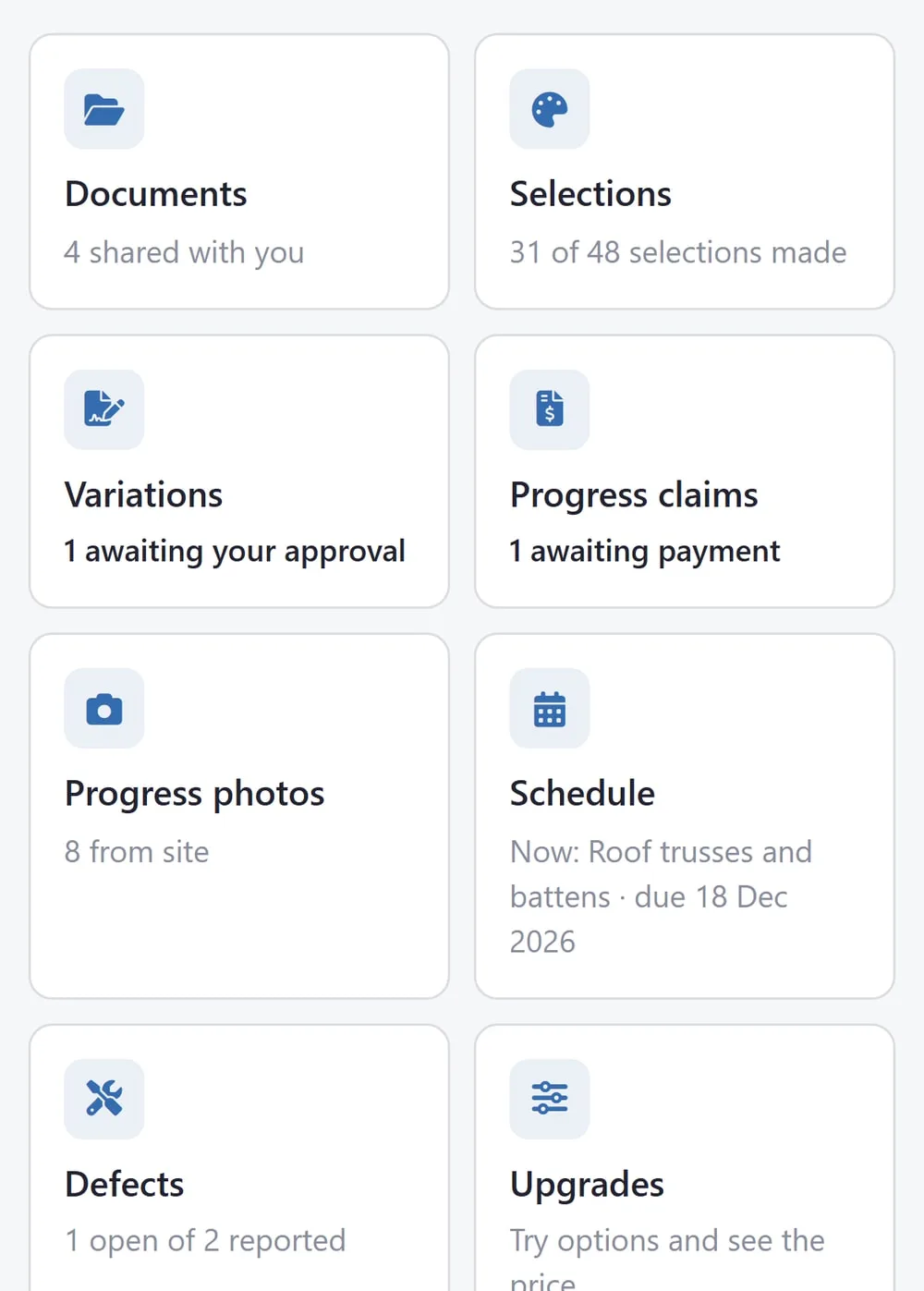
Give your client one address for their job instead of a stream of attachments, and the “can you send me the contract again?” calls stop. They get documents, their selections, variations to approve, claims with the PDF, photos from site and a way to message you — with no login, no app and no password.
Available on the Builder plan

Can they see my margin?
No. The only money on the page is the client's own: their claims and their variations. Your cost, your markup and your margin never leave the server — there is no screen on the portal that could show them and no setting that turns them on.
Nothing is shared by default
Not one document, not one photo. Making a link creates a Client Documents folder on the job, and what you put in it is what they see. Any other file can be ticked to share without moving it.
Photos are opt-in, one at a time
Every site-diary photo has a Share with client tick. The slab, the frame and the roof going on get ticked. The photo of a wrong delivery or a subcontractor's mess stays in the diary where it belongs.
A file marked obsolete disappears from their page. Files the client sends you are filed under the job's Messages folder, not Client Documents, so they never bounce back to them as a shared document.

Everything they would otherwise ring you for
- Home
- A welcome line you write, your contact details, and what is new since they last looked
- Documents
- The files you have shared — contract, drawings for construction, certificates, warranties
- Selections
- A way into their colour selections, and how far through they are
- Variations
- Every variation sent to them, approve or decline, and a form to ask for a change
- Claims
- Their progress claims with the PDF, marked paid, part paid or awaiting payment
- Photos
- Site-diary photos you ticked to share, grouped by the day they were taken
- Schedule
- The stages of the job and where it is up to - shown only if you choose to share it
- Defects
- Somewhere to report a defect with the room and photos, and see when it is marked fixed
- Messages
- A chat with your team, which lands in Messages and on your phones
Defects are reported, not managed. The client picks a room from the job, writes what is wrong and attaches photos. They see the ones they reported and whether each is still open — never your own defect list, never which supplier you have sent it to, and never an internal note. The tab can be switched off per job.
Variations and claims arrive on their own
A variation appears on their page the moment it is sent to them, and approving it there is the same typed-name signature as before. A progress claim appears as soon as it exists on the job.
The Claims tab works out paid, part paid or awaiting payment from the payments recorded against the job — which is a good reason to record them as they arrive, or a client will see a claim as outstanding after they have already paid it.
They can start the conversation
The Variations tab has ask for a change. It arrives on your side as a new variation flagged Client request, waiting to be priced — instead of a phone call you half-remember three weeks later.
Anything they write on the Messages tab lands in Messages as a Client chat on the job, and on your team's phones. Suppliers and your own team chats stay separate; the client sees only their own thread.
Invite, watch, revoke
The Client portal card on Project settings does the lot. Invite by email with a covering line you write, or make the link and send it however you like. You are copied on the invitation.
The card tells you when the client first opened the page and how often — so you know whether the invitation landed before you chase it. Revoke kills a link immediately; anyone opening the old address is told it is no longer valid.
The welcome line is worth writing properly. "Frame goes up next week; photos will appear here as we go" beats a generic greeting, and changing it does not send another email.
Most clients will only ever open it on a phone
It is a web page, so it works in whatever browser they already have — nothing to install, and nothing for them to forget the password to. You can send the invitation from your own phone too, standing on their site.
A closer look at the client portal
What they see, and what you control.

What it connects to
Nothing in SmarteBuild is an island — that is the point of it. Client Portal reads from and feeds into these.
-
Variations
Price a change, get it approved, and carry it into the contract
-
Progress Claims
Claim by percentage or by stage, variations included, and track payment
-
Colour Selection
Estimate, select, approve — then push the choices into the estimate and the orders
-
Messages
The job conversation, attached to the job instead of lost in a phone
Want the detail?
The help centre documents Client Portal step by step, with worked examples — written for people using it, not for a brochure.
Start with one job and see
Try the whole thing free for 30 days. No credit card to start, and no lock-in contract.