
Say what the price has to cover
A subcontractor prices exactly what they read. Write your scope of works once for each trade, tick what applies on each job, and send it as a numbered PDF with the tender — so the cheapest quote is not just the one that left the most out.
Available on the Estimator plan and above
The cheapest quote is often the one that left the most out
A roofer prices the sheeting and leaves out the sarking. Not to catch you out — nobody told them it was theirs. You find out on site, at around $1,400, after the trade is awarded.
Most builders know this, and still write the scope in a hurry the night the tender goes out. The one written in a hurry is the one that costs money later. Writing it once per trade, and ticking what applies on each job, is the difference between a scope you trust and one you hope covers it.
Your standard scope, once per trade
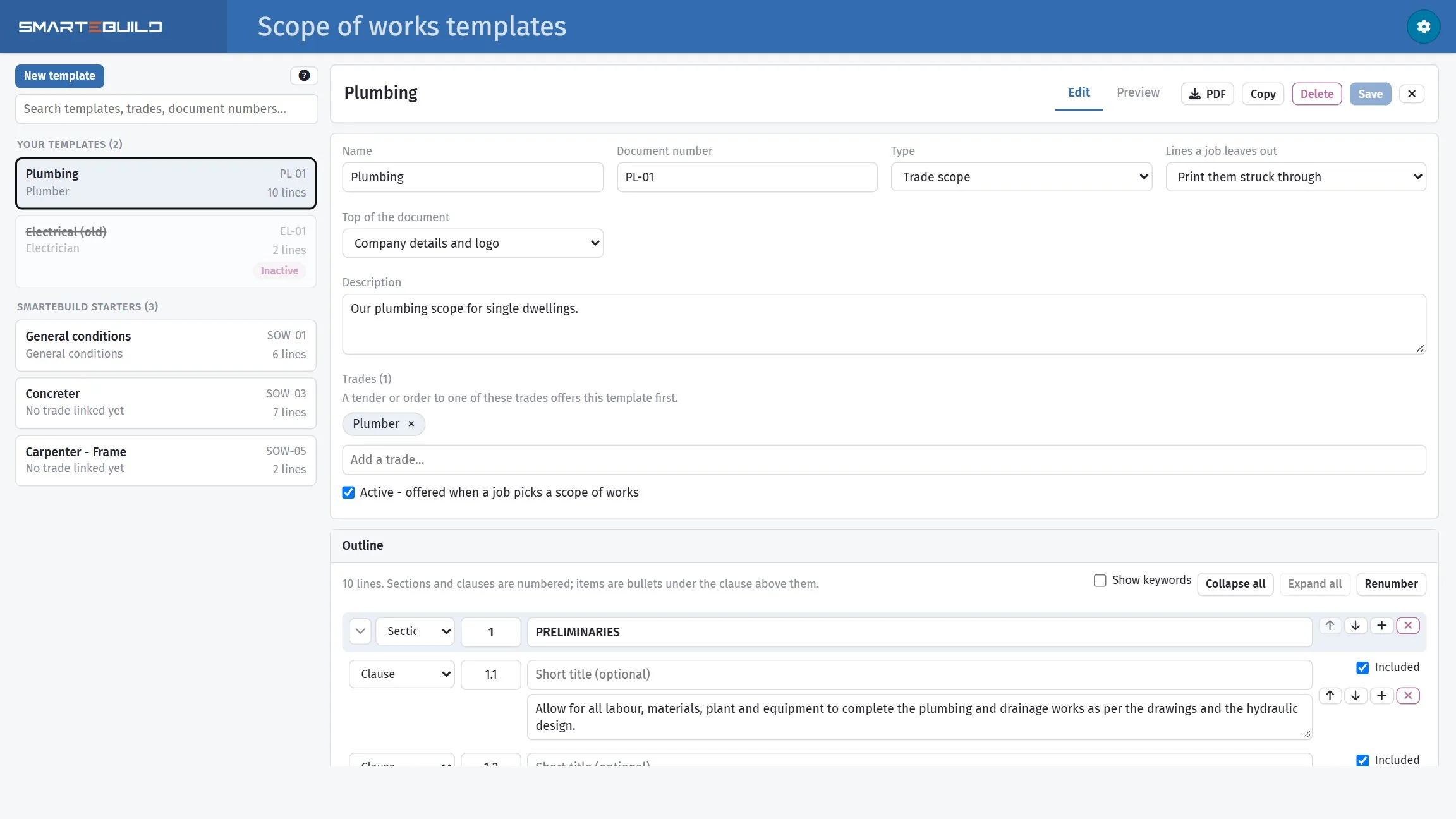
Start from your own words, or copy one of the SmarteBuild starters — concreter, framing, plumbing, electrical, roofing, plastering, tiling and more — into your templates and make it yours. A general conditions document sits behind every trade's scope, so site rules and payment terms are written once, not twelve times.
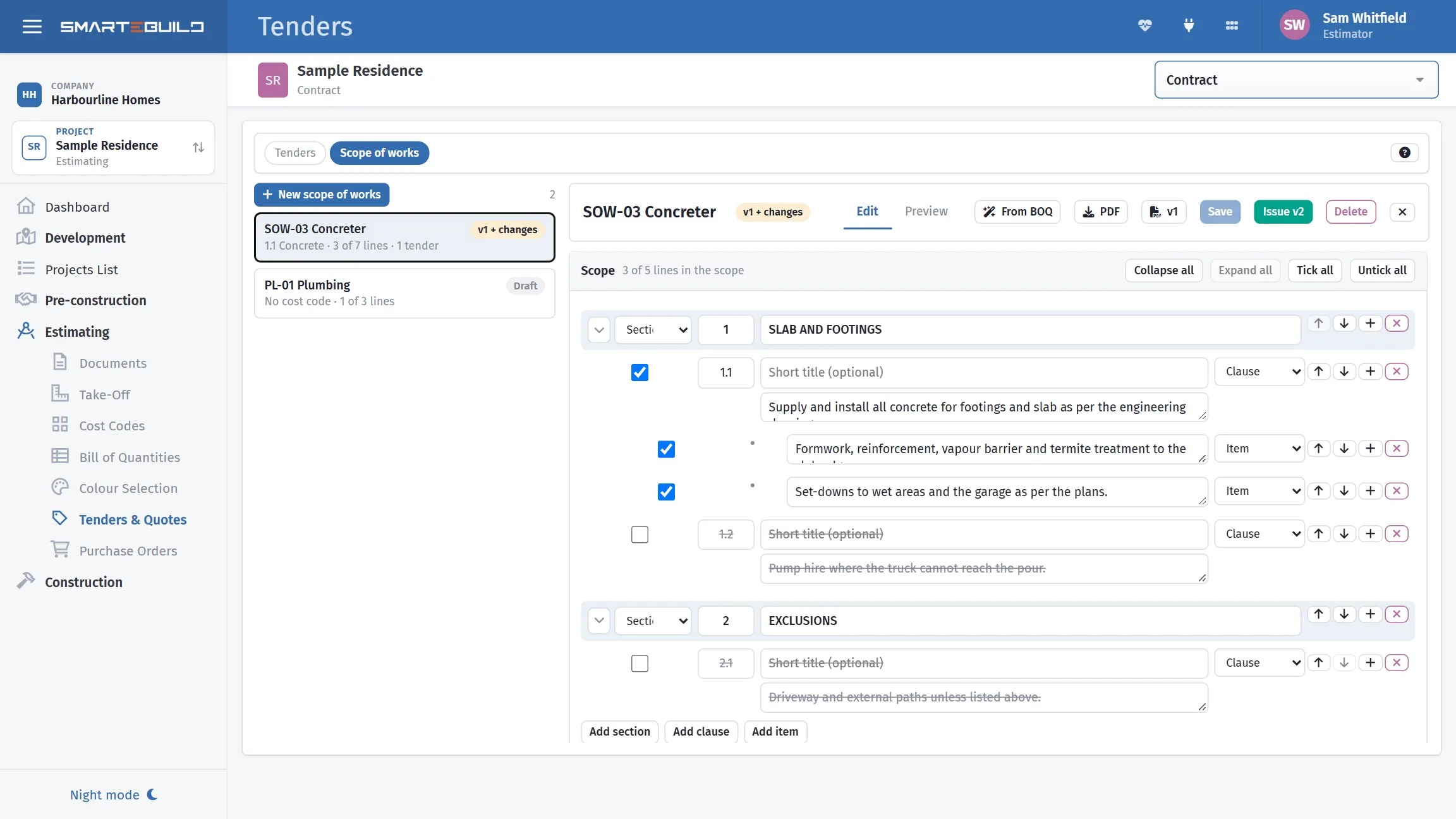
Every clause and item has an included tick. Choose whether the lines a job leaves out print struck through, with a mark in an Excludes column, or are left off altogether. Struck through is usually the better choice: the trade sees what is not theirs as clearly as what is.
Choose what heads the page — your company details and logo, or the title only — and link the template to its trades, so a tender to a plumber offers the plumbing scope first.
Five kinds of line
- Section
- A numbered heading — 1. Preliminaries, 2. Drainage, 3. Exclusions
- Clause
- A numbered line under it — 2.1, 2.2. The part the trade prices
- Item
- A bullet under a clause, for the parts of that clause
- Subheading
- A bold label with no number, to break up a long section
- Paragraph
- Plain text — a condition, a note, an explanation
If the trade has to price it, make it a clause or an item. If it only labels or explains, make it a subheading or a paragraph.
Copied, ticked, and matched to the bill
Open Tenders on the estimate and switch to Scope of works. Each trade gets its own scope, copied from its template, and the list shows whether it is a draft, issued, or changed since it was issued.
Tick what applies, change any wording for this job, and add lines the job needs. Give the scope a cost code and From BOQ reads the items in your bill under it: lines whose keywords appear in an item name are ticked, the other keyword lines are unticked, and the items with their quantities are listed at the end — so the scope and the price schedule say the same thing.
The job details at the top of the document start from the project: site address, practical completion, labour rates, who to call on site. Blank lines are not printed.
The steps
- Pick the trade's template
- Tick what applies, add what this job needs
- From BOQ, if the scope has a cost code
- Issue — a numbered PDF, filed with the job
- Attach it to the tender, or to the purchase order
From BOQ matches words in your item names. It does not guess, and you can change any tick it makes.
What they priced never changes under them
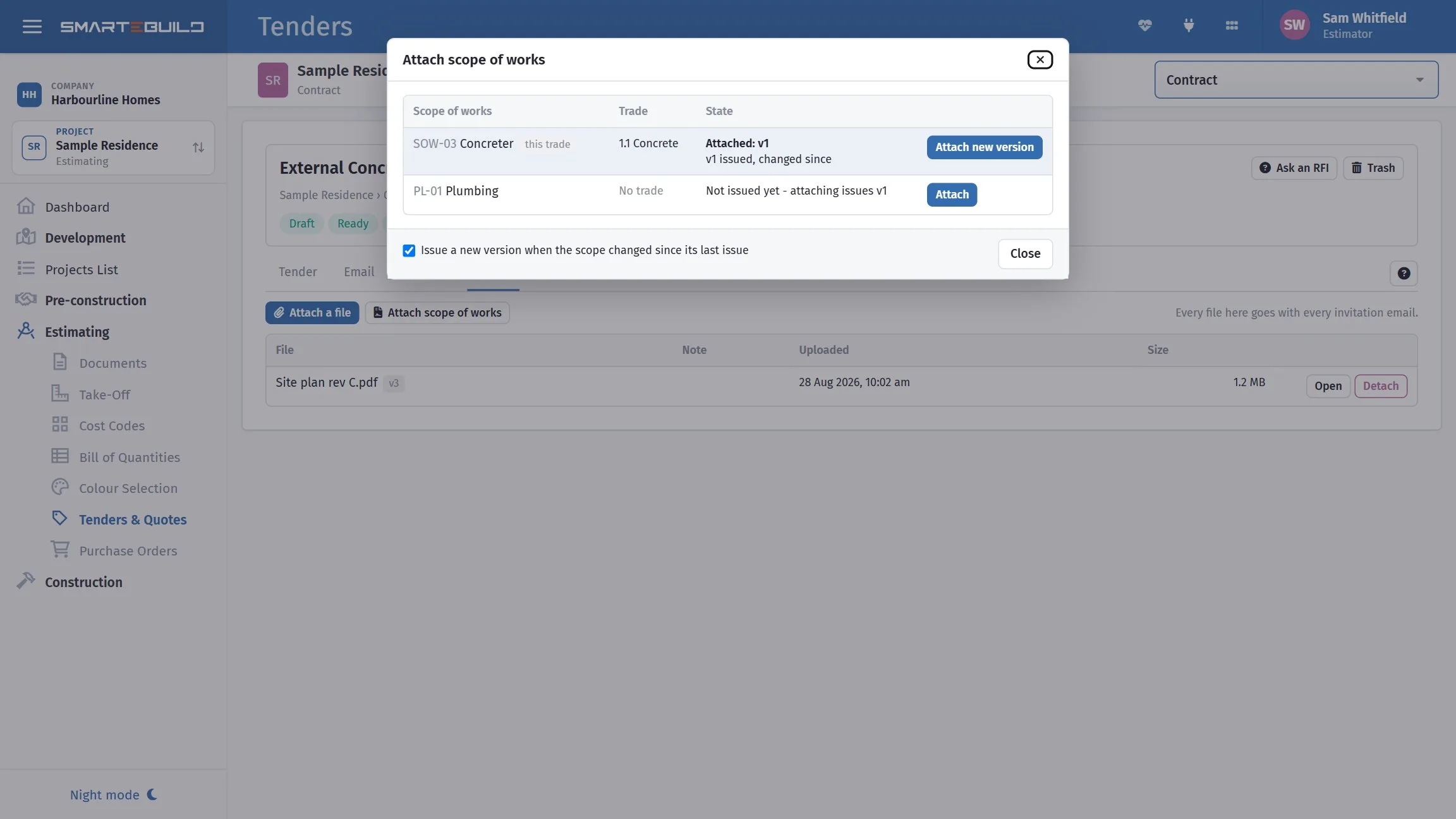
Issue freezes the scope as a numbered PDF — version 1 — and files it in the job's documents. Change the scope later and you issue version 2. Version 1, the one they priced, is still there exactly as it went.
- On the tender: Files, Attach scope of works. The trade's own scope is offered first, a newer version replaces the old one, and it travels with the tender's files — with every invitation, and on the subcontractor's pricing page.
- On a purchase order: the same button, and an order raised from an awarded quote carries the scope the tender went out with.
- In the documents register: every issued version, ready for a transmittal like any other file.
When the conversation happens six weeks later — “that is not what I priced” — the version they were sent is attached to the job, not sitting in somebody's sent items.
On the Estimator plan and up
Scope of works is part of Tenders & Quotes, so it is on every plan that has tenders — and in the free trial.
A closer look at scope of works
The template, and the scope going out with the tender.
What it connects to
Nothing in SmarteBuild is an island — that is the point of it. Scope of Works reads from and feeds into these.
-
Tenders
Build a trade package, invite subbies, compare what comes back
-
Purchase Orders
Raise orders straight from the BOQ and send them without re-keying
-
Bill of Quantities
The costed spine of the job — items, rates, markups and margin
-
Quotes Received
Record what trades quoted and push the winner into the BOQ
Want the detail?
The help centre documents Scope of Works step by step, with worked examples — written for people using it, not for a brochure.
Start with one job and see
Try the whole thing free for 30 days. No credit card to start, and no lock-in contract.