
The priced estimate, and the spine of everything after it
The Bill of Quantities is where the job gets priced. It is also what your purchase orders, progress claims, variations and expenses all read from — which is why almost every question later in a job turns out to be a question about a BOQ item.
Available on the Estimator plan and above

Every item answers three questions
What is it, how much of it, and what does it cost? Quantity × price gives the item. Sum a cost code and you have the trade. Sum the trades and you have the job.
| Part | Fields | Notes |
|---|---|---|
| What | Item Name, Description, Item Size | What you are buying or doing |
| Where | Cost code | Which trade it belongs to |
| How much | Quantity, Unit, Wastage % | Typed, measured, or derived by formula |
| What it costs | Price, Markup, GST | From a price list, a quote, or entered directly |

A bill that responds to a change, instead of a list of numbers
Measure the slab once. Let the mesh, the membrane, the sand bed and the concrete all derive from it. Change the slab and all four follow — no hunting through the bill for what else was affected.
| Item | Formula | Reads as |
|---|---|---|
| Slab mesh | SlabArea * 1.05 |
Slab area plus 5% laps |
| Vapour barrier | SlabArea * 1.1 |
Slab area plus laps and turn-ups |
| Slab concrete | SlabArea * SlabDepth |
Area × depth |
| Edge formwork | SlabPerimeter |
Straight from the perimeter |
| Wall paint | WallLength * WallHeight * 2 |
Both faces |
| Skirting | WallLength - DoorOpenings |
Wall run less the doors |
Variables can come from a take-off field, so a measured quantity is available to every formula in the estimate. Trace one corner differently and the whole slab package recalculates.
Any box that takes a number also takes a sum
Not just here — everywhere in SmarteBuild a price, a quantity, a rate, a percentage, a size, hours or days is typed. Type the sum and it works it out.
| You type | You get | Because |
|---|---|---|
14.4*9.5 | 136.8 | The slab, straight off the drawing |
3 x 2.4 | 7.2 | An x works as well as a star |
(1200+300)/3 | 500 | Brackets, in the order you would expect |
$1,250+80 | 1330 | Dollar signs and commas are ignored |
=2.4*3+1.2 | 8.4 | A leading = is fine, if that is your habit |
A sum is not a formula. A formula is kept and recalculates when something it reads changes. A sum is arithmetic you did not want to do in your head: the box works it out and keeps the answer. It is the calculator you would otherwise reach for, and the scrap of paper the working was on.
One measurement, the whole trade priced
A brick wall is never one item. It is bricks, sand, cement, ties, lintels, scaffold and the bricklayer — and every one of them comes off the same length and height.
An assembly asks you those questions once. Type the length and the height, choose single or double skin from a dropdown, and it works out every line beneath it: each with its own formula, its own wastage, its own rounding, and deductions subtracted rather than added. The answers land in your bill as ordinary priced items.
Build your own, or start from the residential kits that come with SmarteBuild and change them to suit how you build. An assembly written once is an hour saved on every job after it — and the reason two estimators in the same office price a wall the same way.
Why it beats a saved spreadsheet
A spreadsheet gives you a number to type in. An assembly puts the lines in the bill, keeps them attached to the measurement that produced them, and carries its own waste and rounding rules — so when the wall changes, the order quantity changes with it.
Which kind of money each line is
Every item can carry a cost type — labour, material, subcontractor and the rest — set one line at a time or across a whole selection at once. It is the difference between knowing a trade costs $42,000 and knowing how much of that is a body on site, how much is product sitting in the yard, and how much is somebody else's invoice.
It carries through to the price list, so a product keeps its type wherever it is used next. Beside it sits the GST treatment: an item is either GST applies or GST-free, settable on one line or on a whole selection, so the handful of items that are not taxed like the rest of the job stop being a manual correction at the end.
The estimate stops being a working document and becomes the thing you measure against
A budget everyone can still edit in month four is not a budget. Somebody adjusts a rate to match an invoice, somebody adds the item that was missed, and by the end the job comes in exactly on an estimate that has quietly moved — which tells you nothing about whether you made money.
So when a job moves to Under construction, SmarteBuild locks the money in its estimate. Quantities, rates, products, markups and GST stop being editable; items cannot be added, deleted, copied in, or switched on and off; and a measurement that drives an item's quantity is locked with it. A bar across the top of the bill says so and says why — “Quantities, rates and items can't be changed — make changes through a variation.”
What still works is everything that is not the budget: flags, progress, notes, cost type and colour selection. The job carries on being run. It is the figures that hold still. At Finished, nothing in the estimate can be changed at all, while orders and invoices keep coming in against it as usual.
Measuring is not locked — only the measurements that feed a locked item's quantity. You can keep taking off a drawing on a job already under construction.
It can be undone, by the people you choose. Moving the job back to an earlier stage unlocks the estimate, and Production estimate is the stage meant for re-working a budget. Doing that needs the “Unlock an estimate under construction” permission — administrators have it, and can give it to anyone else under Users. It is a permission and nothing more: not an approval step, and not a record of who unlocked what. If you need the record, that is what a variation is for.
What you learned pricing this job, kept for the next one
Half an estimator's work gets typed into one job and then lost. Select the lines worth keeping — a handful, or the whole trade — and add them to a price list. Descriptions, units, rates and suppliers go across together, and each one lands under a cost code without you filing it by hand.
It works the other way too. Where a price list item already exists, SmarteBuild shows you the old rate against the one you just used on this job and lets you decide whether to update it. Items that look like something already on the list are flagged before they land, so you end up with one line that is current rather than four near-duplicates.
A set of lines that belong together can be saved as an assembly instead, which is how a one-off becomes the way your office prices that trade from then on.
Nothing goes missing in a cost code
Items can end up attached to no cost code at all — a deleted heading, a bad import, a paste gone wrong — and they quietly stop appearing in the totals. The Not in a cost code view lists them, lets you put them back where they belong, and the bill stops those strays being created in the first place.
Price both, switch on the one they choose
Items can be switched on or off. A switched-off item stays in the bill — keeping its quantity, its rate, its supplier and its history — but does not count toward the total.
Carry the tiled roof and the Colorbond roof as separate items, switch on whichever the client wants, and the total follows. When they change their mind, switch it back.
A deleted item takes its rate, its supplier and its history with it. A switched-off item costs nothing and is one click from coming back.

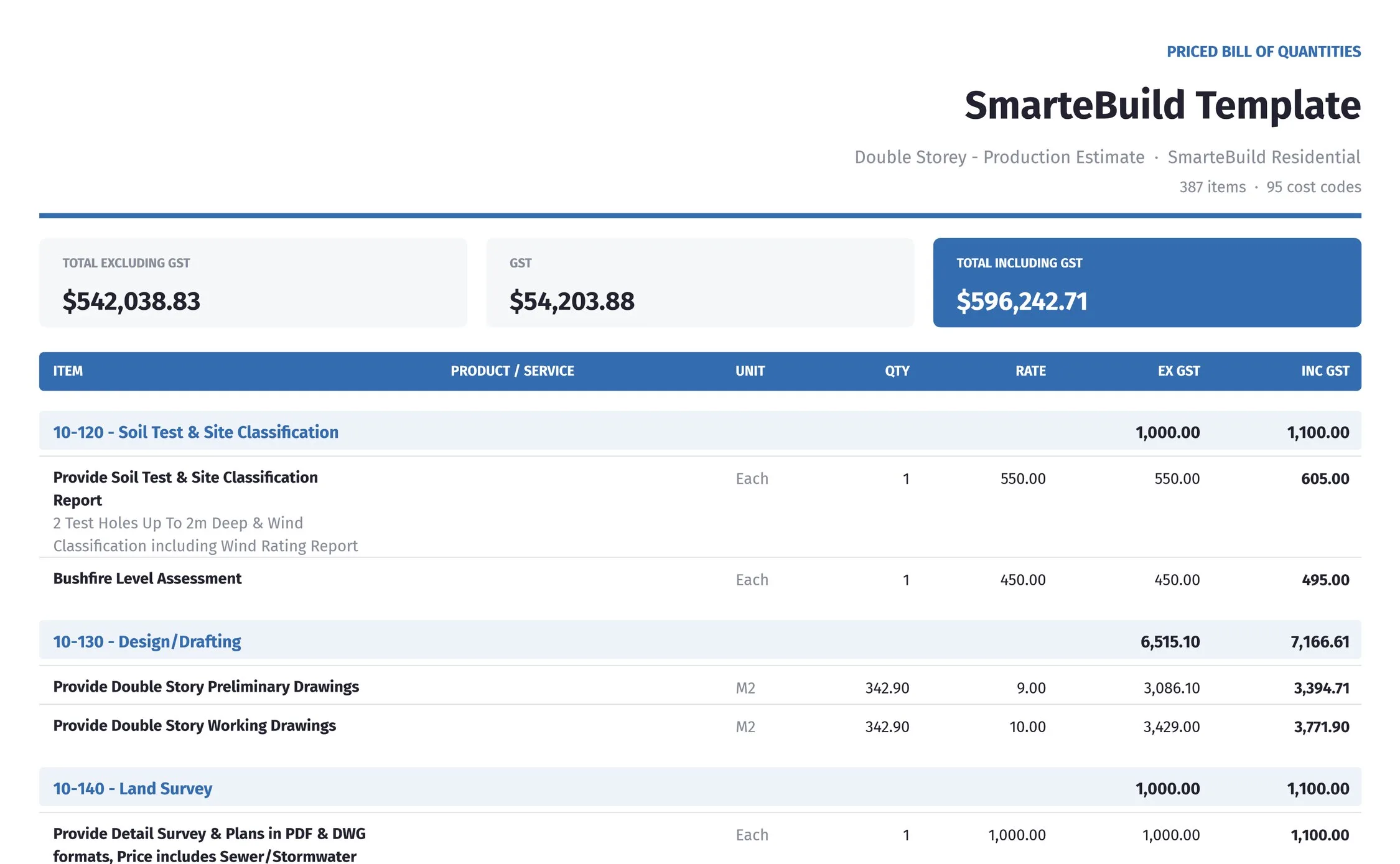
Every view the job actually needs
The bill is one document but it has several audiences — the client, the site supervisor, the subcontractor and you. Each gets the version that makes sense to them.
- Bill of quantities, with prices or without, for one cost code or the whole estimate
- Customisable project specification for the client to review
- Provisional sums and prime cost allowances for the contract
- Supplier report per estimate, for the site supervisor to call up from
- Profit and loss at item level or cost code level
- The entire estimate exported to Excel
Where a quantity comes from
There are three honest answers, and the BOQ supports all of them:
- Typed — you know the number.
- Measured — it comes from a take-off field on the drawing.
- Derived — a formula works it out from other quantities.
The second and third are what stop an estimate going stale the moment a drawing is revised.
A closer look at the BOQ
The same bill, from the angles that matter during a job.


What it connects to
Nothing in SmarteBuild is an island — that is the point of it. Bill of Quantities reads from and feeds into these.
-
Take-Off
Measure straight off the PDF and send quantities to the BOQ
-
Cost Codes & WBS
Structure a job once and reuse it on every job after it
-
Price Lists & Products
Your own rates, kept current, ready to drop into any estimate
-
Purchase Orders
Raise orders straight from the BOQ and send them without re-keying
Want the detail?
The help centre documents Bill of Quantities step by step, with worked examples — written for people using it, not for a brochure.
Start with one job and see
Try the whole thing free for 30 days. No credit card to start, and no lock-in contract.