
Construction procurement, step by step

Procurement is everything between “we need it” and “it’s on site and paid for”: working out what the job needs, getting prices, letting the client choose, ordering on time, booking the trades, and checking the invoice. On a house that is a few hundred items and thirty-odd trades.
Most of it isn’t hard. What goes wrong is timing. The windows were ordered a fortnight late, the client hadn’t picked the tapware, the benchtop arrived after the kitchen fitter. Each one costs a week, and a week on a house means site costs, a trade you have to rebook, and a phone call nobody enjoys.
Here is the whole process, step by step, with an example at each stage and where SmarteBuild does the work.
1. Work out what the job needs
Everything starts with quantities: how many square metres of slab, linear metres of skirting, sheets of plasterboard, windows and doors. You measure them off the drawings and price them into the estimate.
This is also where you decide which items are not chosen yet. Tiles, tapware and the kitchen usually go in as PC items (supply only) or provisional sums (supply and install). Those are the items that need a client choice later, so mark them now. PC and PS items explains the difference and why it matters.
In SmarteBuild: measure on the plans in Take-Off and the quantities flow into the bill of quantities. Each item sits under a cost code, so the estimate and the orders later line up.
2. Package the work and ask for prices
You don’t send a trade the whole estimate. You send them their part: a trade package with the scope, the quantities and the drawings that apply to them.
Example: the frame and truss package goes to three suppliers with the frame plans, the truss layout and a delivery address. The plasterer gets the plasterboard quantities and the wet-area list.
In SmarteBuild: build the package in Tenders, invite suppliers and subbies from your supplier list, and track who has replied and who hasn’t.
3. Compare like with like, then pick
The lowest total isn’t always the lowest price. Before you compare, check what each quote leaves out.
Example, frame and truss (all prices ex GST):
| Supplier | Quoted | Leaves out | Real price |
|---|---|---|---|
| A | $38,400 | nothing | $38,400 |
| B | $41,900 | nothing | $41,900 |
| C | $36,200 | crane hire $2,800, delivery $650 | $39,650 |
C looks cheapest and isn’t. A gets the job.
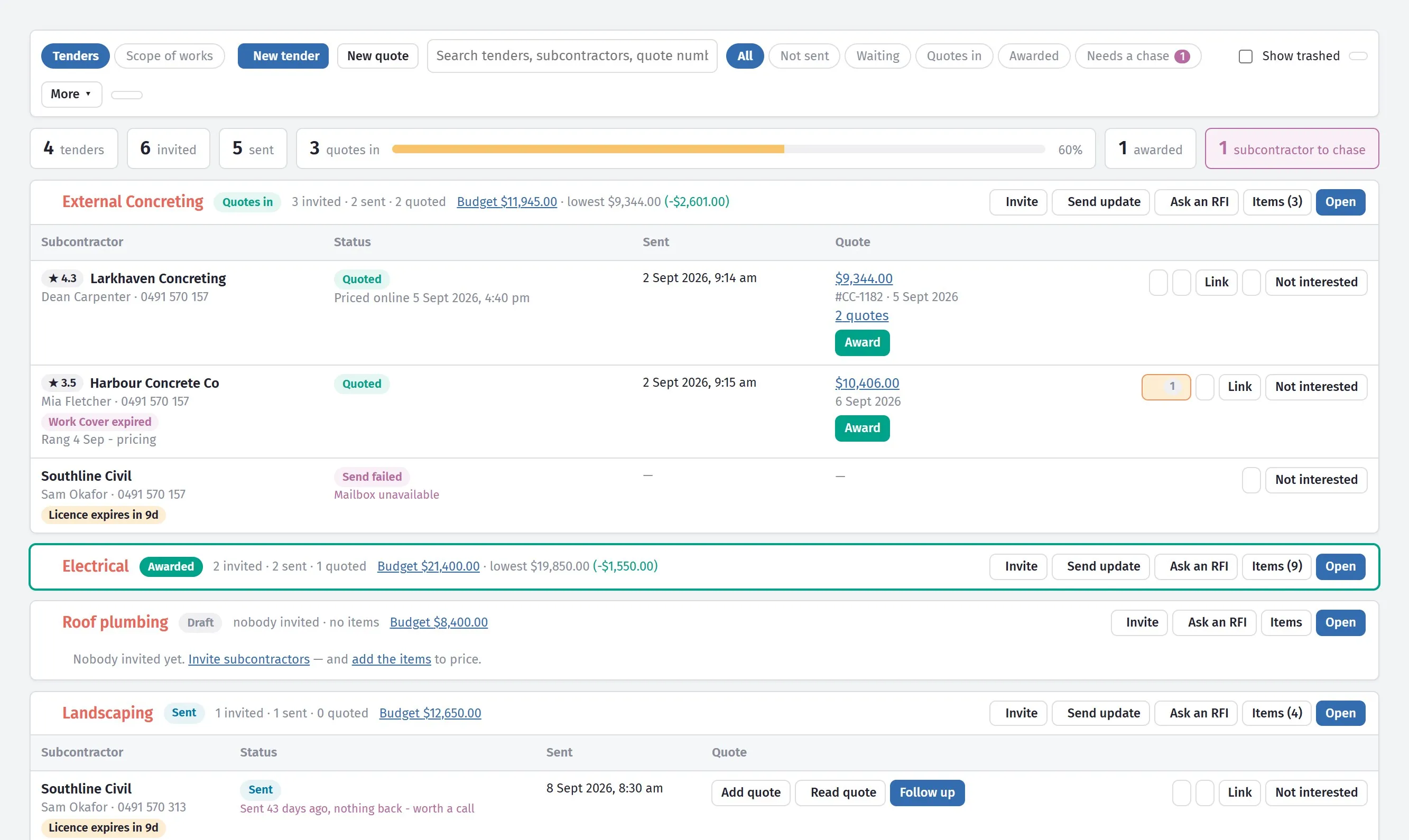
In SmarteBuild: the bids sit side by side in Tenders, and the winning price goes into the estimate through Quotes Received. The number you priced and the number you’re ordering are the same number.
4. Get the client’s choices in time
Every PC item waits on a decision: the tiles, the tapware, the benchtop. A choice made late becomes an order placed late, so the client needs a choose-by date, not just a list.
If a choice costs more than the allowance, tell the client before you order and put it in writing as a variation.
In SmarteBuild: the client picks through Colour Selection on their own link, you approve, and the choices flow into the estimate and the orders. When a selection is linked to a procurement item, the client’s page shows Please choose by with the date.
5. Work out when to order everything
This is the step most builders keep in their heads, a spreadsheet or a whiteboard, and it’s the one that causes late jobs.
Every item has a date it is needed on site, and that date comes from the schedule. Work backwards from it:
- On site by = the day the task starts, less a few days’ buffer
- Order by = on site by, less the supplier’s lead time
- Choose by = order by, less the time the client needs to decide
Example, a kitchen benchtop. The kitchen install starts 16 March. You want the benchtop there 5 days early, the supplier quotes 4 weeks, and the client gets 14 days to choose:
| Date | Worked out as | Result |
|---|---|---|
| On site by | 16 March less 5 days | 11 March |
| Order by | 11 March less 4 weeks | 11 February |
| Choose by | 11 February less 14 days | 28 January |
Example, windows. Window install starts 2 February, lead time 6 weeks. On site by 28 January means order by 17 December, before the Christmas shutdown. Miss that and the windows arrive in late February, and lock-up moves with them.
Now the slab is poured two weeks late, which happens. The kitchen install moves to 30 March, so the benchtop should now be ordered by 25 February and chosen by 11 February. If those dates live in a spreadsheet, someone has to remember to change every one of them. The one they forget is the one that holds up the job.
In SmarteBuild: the Procurement tab in the Schedule lists everything to be chosen, ordered and delivered, with each item tied to its schedule task. You never type the three dates. They are worked out from the task and the lead time, and they move when the schedule moves. The list opens on what needs action: order overdue, choice overdue, arrives too late, order soon. You can fill it from the estimate’s PC items or the job’s colour selections, copy it from a previous job, or import an Excel sheet or a Monday.com board as it is.

6. Raise, approve and send the order
An order is a commitment. It should say exactly what was priced (description, quantity, rate, supplier, delivery address) and someone should approve it before it goes.
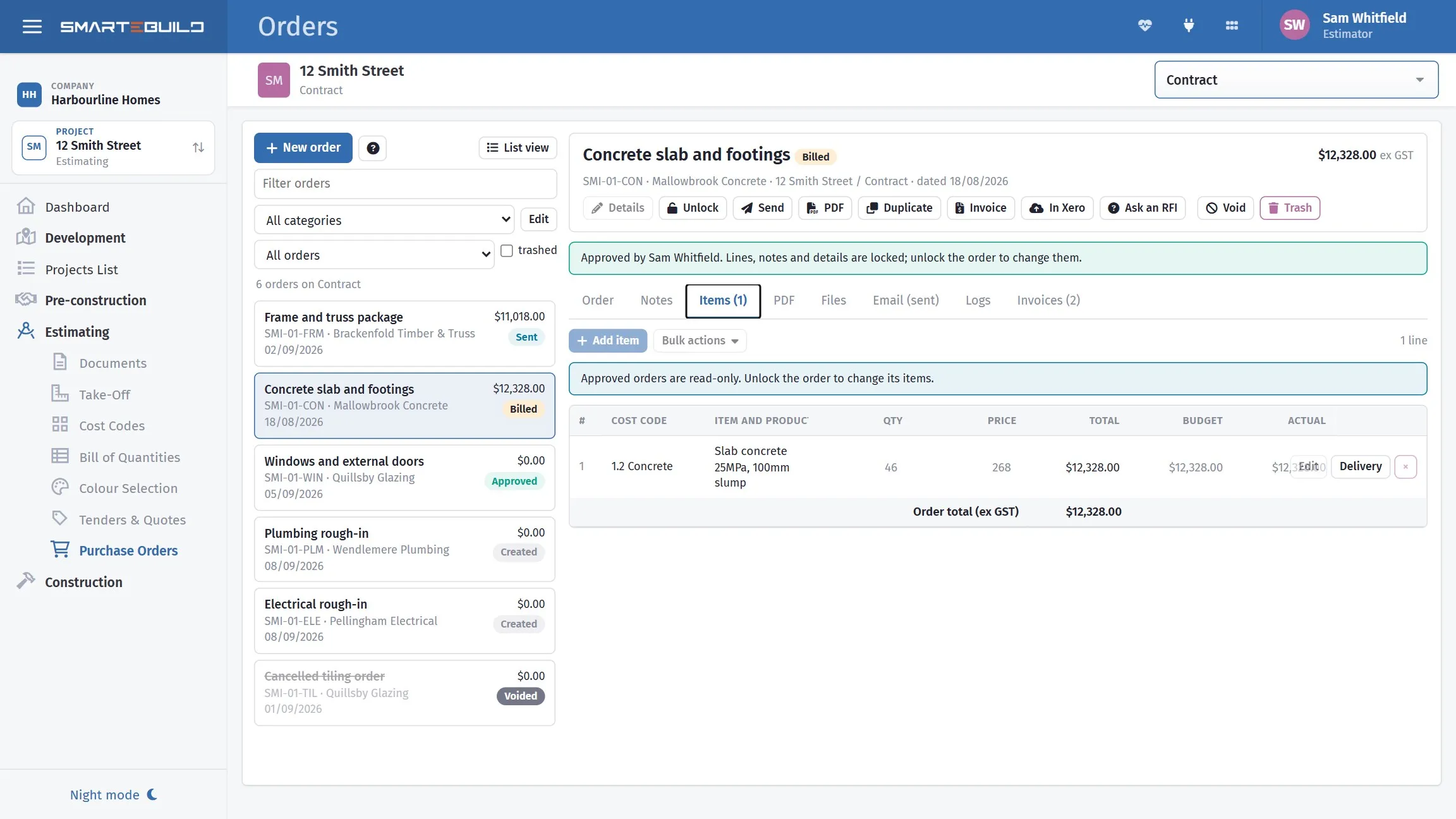
In SmarteBuild: select the items in the estimate and raise a purchase order from them. The lines fill themselves in. An unapproved order can’t be emailed, and an approved one goes from your own email address. When a procurement item is linked to the order, it shows Ordered with the date the order was sent.
7. Book the trades
Materials are orders. Labour is a booking. Each trade needs notice that matches how far ahead they book: a plumber might want a week, a bricklayer three.
Example: every Monday you look at the next fortnight across every job, send the call-ups, and chase anyone who hasn’t confirmed. A trade that hasn’t replied isn’t booked.
In SmarteBuild: the call-up sheet shows the week ahead from the schedule, and each trade’s notice period is set once.
8. Check the invoice against the order
When the invoice arrives, check it against the order before you pay: supplier, quantity, rate, GST, and anything added that wasn’t ordered.
Example, concrete (ex GST): the order was 32 m³ at $295 = $9,440. The invoice says 33.5 m³ plus $180 waiting time = $10,062.50. That’s $622.50 more. The extra 1.5 m³ may well be fine, but someone on site should confirm it. The waiting time needs a reason. This is the only point where an overcharge is still a question. Once it’s paid, the money is gone.
In SmarteBuild: record the invoice in Expenses against the order and the difference shows up on its own. Then send it to Xero instead of typing it twice.
9. Track cost against the budget
For every cost code, three numbers tell you where the job stands:
- Allowed: what you priced
- Committed: what you’ve ordered
- Actual: what you’ve been invoiced
Committed above allowed means you’ve ordered more than you priced, and you’re finding out now rather than at handover. Committed well below allowed, late in a trade, usually means orders haven’t been raised yet, not that you’re under budget.
In SmarteBuild: Purchase Orders shows all three per cost code, and Earned Value shows whether the job is ahead or behind and over or under.
The short version
| Step | What happens | In SmarteBuild |
|---|---|---|
| 1 | Measure and price the job | Take-Off, Bill of Quantities |
| 2 | Send trade packages for prices | Tenders, Suppliers |
| 3 | Compare and pick | Tenders, Quotes Received |
| 4 | Client chooses by a date | Colour Selection |
| 5 | Work out when to order | Schedule → Procurement |
| 6 | Raise, approve, send the order | Purchase Orders |
| 7 | Book the trades | Call-Up Sheets |
| 8 | Check the invoice | Expenses, Xero |
| 9 | Watch cost against budget | Purchase Orders, Earned Value |
None of the steps is new. What changes when they’re in one place is that each step picks up where the last one left off. The tender price becomes the estimate, the estimate becomes the order, the schedule sets the order date, and the order is what the invoice is checked against. Nothing gets retyped, so nothing gets out of step.
SmarteBuild is Australian estimating and job management software for residential builders. Try it free for 30 days — no credit card, every module to try.