
Document control for builders, step by step

A building job runs on drawings, and drawings change. The architect issues Rev C, the engineer revises the footings, the client moves the kitchen 600 mm. The new drawing lands in your inbox. Then the real question is who else needs it.
The expensive mistakes on a job are rarely about price. They come from somebody building from the wrong drawing. The framer works off Rev B, the window supplier makes the frames to the old sizes, the slab goes down with the old set-out. You find out when it’s built, and that’s when it costs most to fix.
Document control is how you stop that. It sounds like paperwork, but it comes down to nine habits. Here they are step by step, with an example, and where SmarteBuild does the work.
1. Keep one register per job
A drawing register is a list of every drawing and document on the job, with four things against each one:
- Number, such as A-101 or S-201
- Revision, such as A, B, C or 1, 2, 3
- Status, which is what it’s good for: preliminary, for information, for tender, for construction, or as built
- Discipline, such as architectural, structural, hydraulic or electrical
One register, in one place, for the whole job. Not a folder on someone’s laptop, not the last email from the architect. If two people can each have “the latest drawings” and they aren’t the same, you don’t have a register.
In SmarteBuild: every job has its Documents page, and the Register view lists every current document with its number, revision, status and discipline. Filter it by discipline or status, print it for the head contract, or export it to a spreadsheet.

2. Name files so the register fills itself
Typing numbers and revisions into a register by hand is the job nobody does on a Friday afternoon. Let the file name do it instead.
Example: the architect sends A-101_RevC.pdf. The number is A-101 and the revision is C, so there’s nothing to type.
Most architects and engineers already name their files this way. If yours don’t, it’s worth one email asking them to.
In SmarteBuild: the number and revision are read from the file name when you upload it. S-201 Rev 2.pdf, A-101_RevC.pdf and A101 [C].pdf all work. Anything it gets wrong, you fix in the register in place.
3. Upload a revision as a new version, never a new file
A-101 Floor plan is the drawing. Rev A, Rev B and Rev C are versions of it. When Rev C arrives, it replaces Rev B. It doesn’t sit next to it with a slightly different name.
That sounds like tidiness, but it decides whether anything downstream works. If Rev C is a separate file, nothing knows it replaced Rev B. Your old orders still point at Rev B and nobody can tell who has the old one.
In SmarteBuild: open the drawing and click New version. The next revision is filled in for you (B becomes C), you say what changed, and the old one is kept as an old version. It’s still findable, just no longer current. Orders not yet sent switch to the new drawing on their own. The phone app shows only the current one, so nobody on site opens Rev B by accident. If you’ve measured the drawing in Take-Off, it offers to carry your measurements forward to Rev C, flagged for you to check. A spreadsheet such as a window schedule can be edited right on the page — saved as the next version, with the original kept, so the same rule holds for the documents you change yourself.
4. Issue drawings formally, on a transmittal
Emailing a PDF isn’t issuing it. An email doesn’t say what the drawing is for, it doesn’t record which revision went to whom, and “I never got it” can’t be argued with.
A transmittal is the formal record. It’s a numbered sheet (TR-001, TR-002…) listing:
- which drawings went, at which revision
- who they went to, and when
- what they’re issued for: for information, for construction, for tender, for review or for approval
If there’s ever a question about what the frame and truss supplier was given, the transmittal answers it.
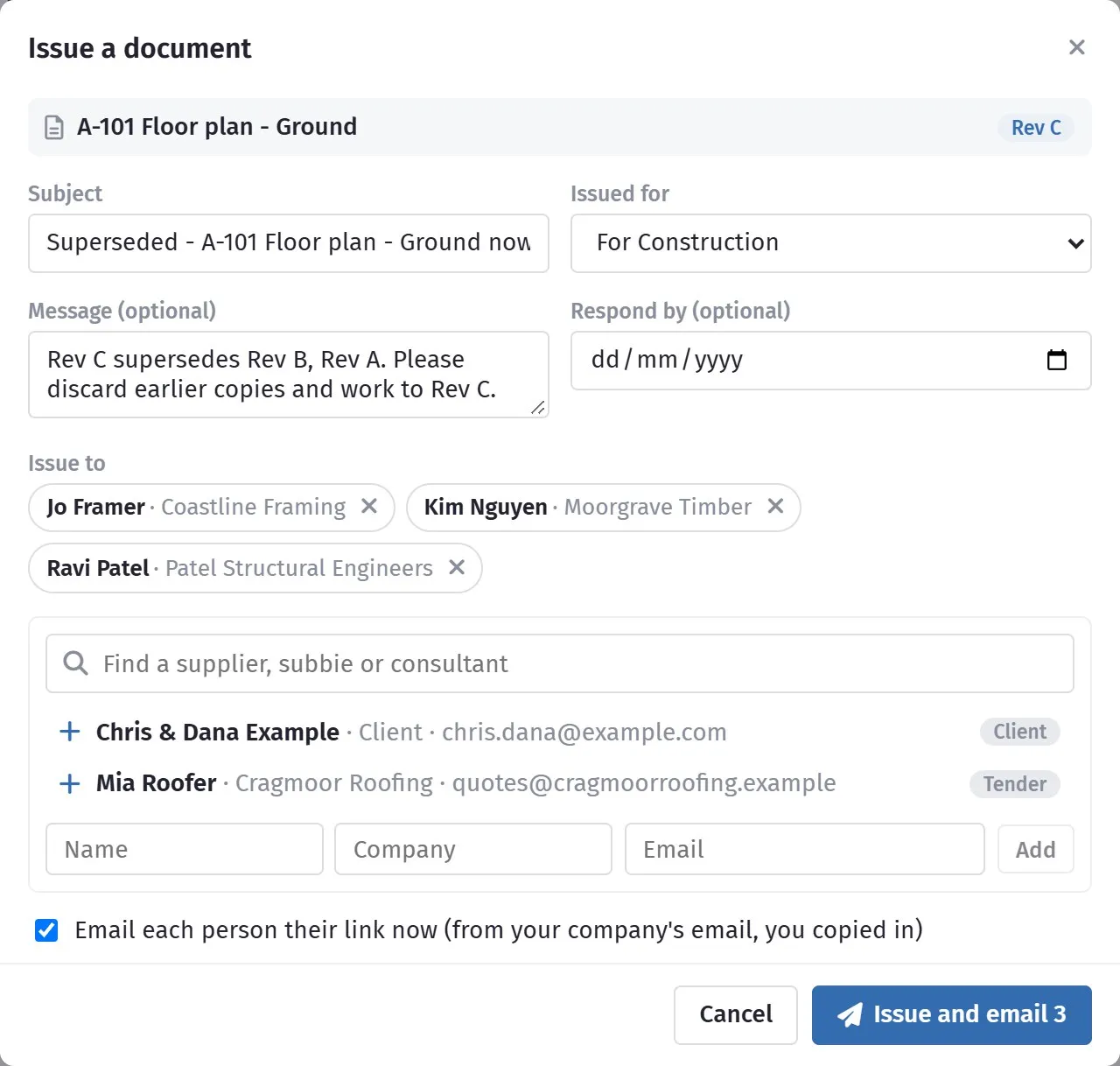
In SmarteBuild: open a drawing, or tick several in the register, and click Issue. Pick the people from the job’s own contacts (the client, tender invitees, the suppliers on its orders) or type someone new. Each person gets an email from your company’s address with their own link, and they don’t need to log in. You see when each of them opened it, and they click I have received these to acknowledge it. A drawing that has been issued can’t be deleted, because it’s part of the record.
5. When a drawing changes, re-issue it to everyone who had the old one
This is the step that goes wrong, because it relies on somebody remembering. Rev C arrives, you file it, and three weeks later the window supplier delivers frames made to Rev B. They were never told.
Example, A-101 Floor plan:
| Date | What happened | Who now has what |
|---|---|---|
| 20 Aug | Rev B issued for construction on TR-001 | Framer and engineer: Rev B |
| 25 Aug | Window order sent, with Rev B attached | Window supplier: Rev B |
| 12 Sep | Rev C arrives: the kitchen moves 600 mm north | Office: Rev C. Everyone else: Rev B |
On 12 September three people hold a superseded drawing, and they got it three different ways: a transmittal, a purchase order and a share link. Re-issuing means working out all three and sending to all of them.
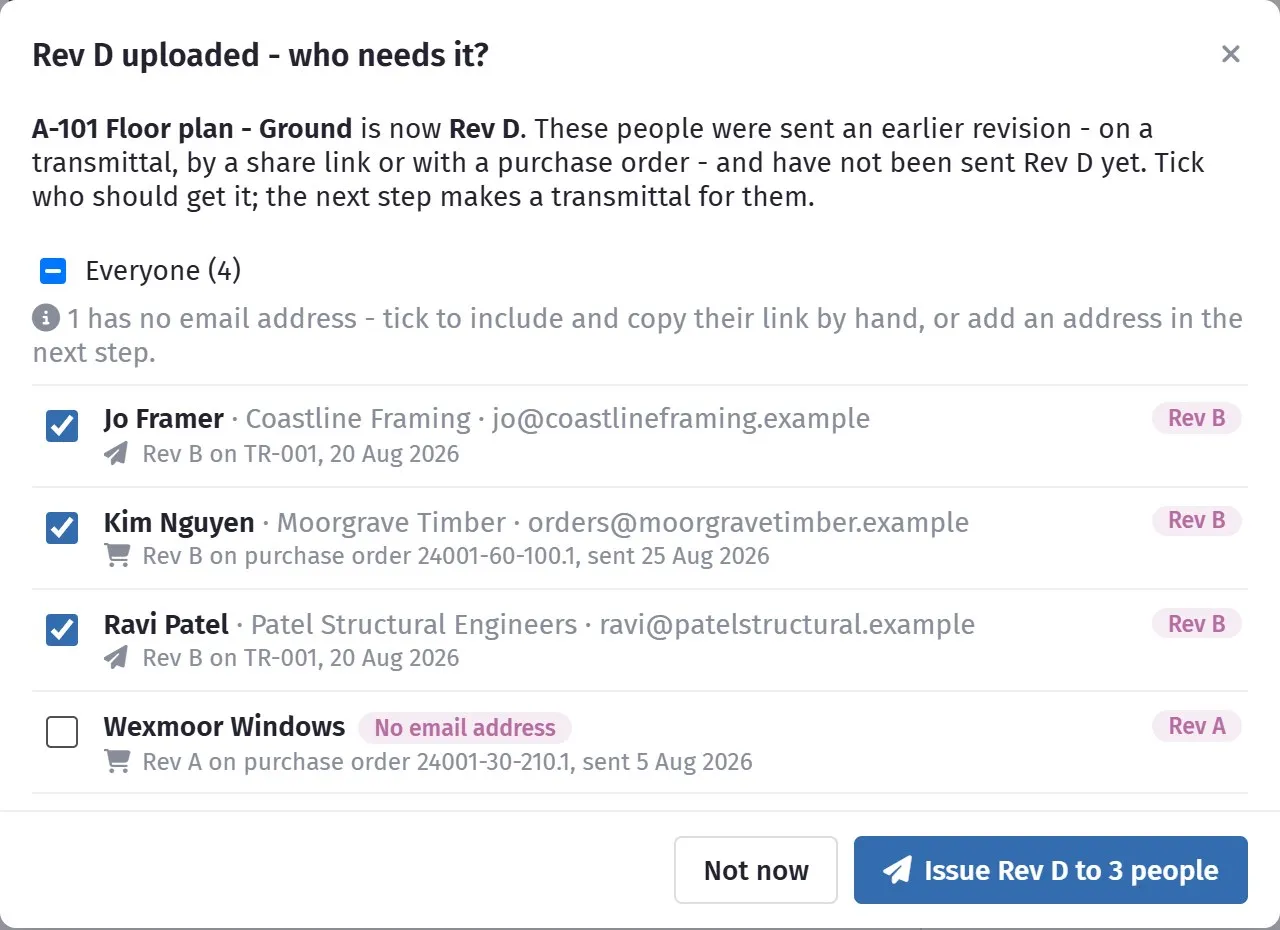
In SmarteBuild: you don’t have to remember. The moment you upload Rev C, SmarteBuild lists everyone who has an older copy: people on transmittals, people sent a share link, and the supplier on every purchase order that went out with the old drawing attached. Each person is listed once, with what they hold and how they got it. Click Issue Rev C to 3 people and the transmittal is filled in for you. The subject says it’s superseded and the message asks them to discard earlier copies. Check it and send. Until everyone has the current revision, the drawing carries a warning saying how many people still hold an older one.
If a tender is still out on the old drawing, re-issue to those invitees too. A price on Rev B is a price for the wrong job.
6. Ask questions in writing: RFIs
Drawings don’t always agree with each other. A-101 shows a window head at 2100 and the elevation shows 2400. S-101 doesn’t give a pier depth. You ring the architect, they say 2400, and three weeks later nobody remembers who said it.
An RFI (request for information) is a numbered question with a date it should be answered by, and a written answer. It matters for money too. When an answer changes the work (extra framing, deeper footings, a week waiting for a decision), the RFI and its dated answer are what back up the variation or the extension of time.
In SmarteBuild: open the drawing and click the question mark. The drawing is attached for you. Write the question, set an answer-by date and pick who to ask. They answer through their own link, with no login, and can attach a marked-up sketch. You’re emailed the moment they answer. The RFIs list shows what’s waiting, overdue, answered and closed. When it’s settled, you record whether it changes the cost or the time, and close it.

7. Let consultants send revisions straight to the job
Every revision that arrives by email has to be downloaded, renamed and filed, and someone has to remember to do it. The engineer who sends a new set every fortnight can just as easily put it in the right place themselves.
In SmarteBuild: make an upload link for a folder, say Structural, and send it to the engineer. They drop files in without an account. Each file lands in that folder, is recorded under their name, and has its number and revision read from the file name like any other upload. The link stops working on the date you choose, or straight away if you cancel it.
8. Decide who sees what
Not everything on a job is for everyone on it. The signed contract, the commercial correspondence and the variation negotiations belong with the people running the job.
In SmarteBuild: a company administrator can restrict any folder to chosen people. Everyone else doesn’t see the folder or anything in it, on the web or on the phone. Administrators always see everything.
9. Keep the record
When there’s a dispute, the question is always the same: who had what, and when? You want to answer that with a record, not a memory.
In SmarteBuild: every document has a History tab, and every job has an Activity view. Between them they record every upload, new version, view, download, change, issue and acknowledgement, with who did it and when. People outside the company (a supplier opening a transmittal, an engineer uploading through a link) are marked as outside. Filter it by date or person, or export it to a spreadsheet.

The short version
| Step | What to do | In SmarteBuild |
|---|---|---|
| 1 | One register per job | Documents, Register view |
| 2 | Name files with number and revision | Read from the file name on upload |
| 3 | Revisions as versions, not new files | New version |
| 4 | Issue formally | Transmittals: own link, opened, acknowledged |
| 5 | Re-issue when a drawing changes | Everyone with an older copy listed, one click |
| 6 | Ask in writing | RFIs: numbered, dated, cost and time recorded |
| 7 | Consultants upload to the job | Upload links |
| 8 | Restrict what’s sensitive | Restricted folders |
| 9 | Keep the record | History and Activity |
None of this is new. Commercial builders have run drawing registers and transmittals for decades, usually in spreadsheets and email. What changes when it’s all in one place is that each step knows about the others. The register knows the revisions, the transmittals know who got which one, the orders know which drawing they went out with, and so a new revision tells you on the spot who needs it.
SmarteBuild is Australian estimating and job management software for residential builders. Try it free for 30 days — no credit card, every module to try.